
Overview
iconpractice can generate a draft letter using AI based on a predefined template. This is available from the New Letter page for a patient. Rather than starting from a blank page or a static word template, you choose an AI template that has been set up for your practice, and the system writes a complete draft tailored to the patient and their clinical history in seconds.
All users can generate a certain number of letters per month (see the pricing page for current limits). AI letter generation above that limit requires AI access to be enabled on your user account. If you do not see the Generate with AI option on the New Letter page, contact your Super Admin.
The AI produces a draft for review. Always read through and edit the letter before sending.
Opening the New Letter Page
Navigate to the patient's record and open the Letters tab. Click New Letter to open the letter editor. The editor opens with a blank body and options to choose a template or generate with AI.
Choosing an AI Template
The AI Template dropdown lists all letter templates that have been set up for your practice. Each template corresponds to a specific letter type, such as a GP referral, a progress report for an insurer, or a discharge summary. Select the template that matches the letter you need to write.
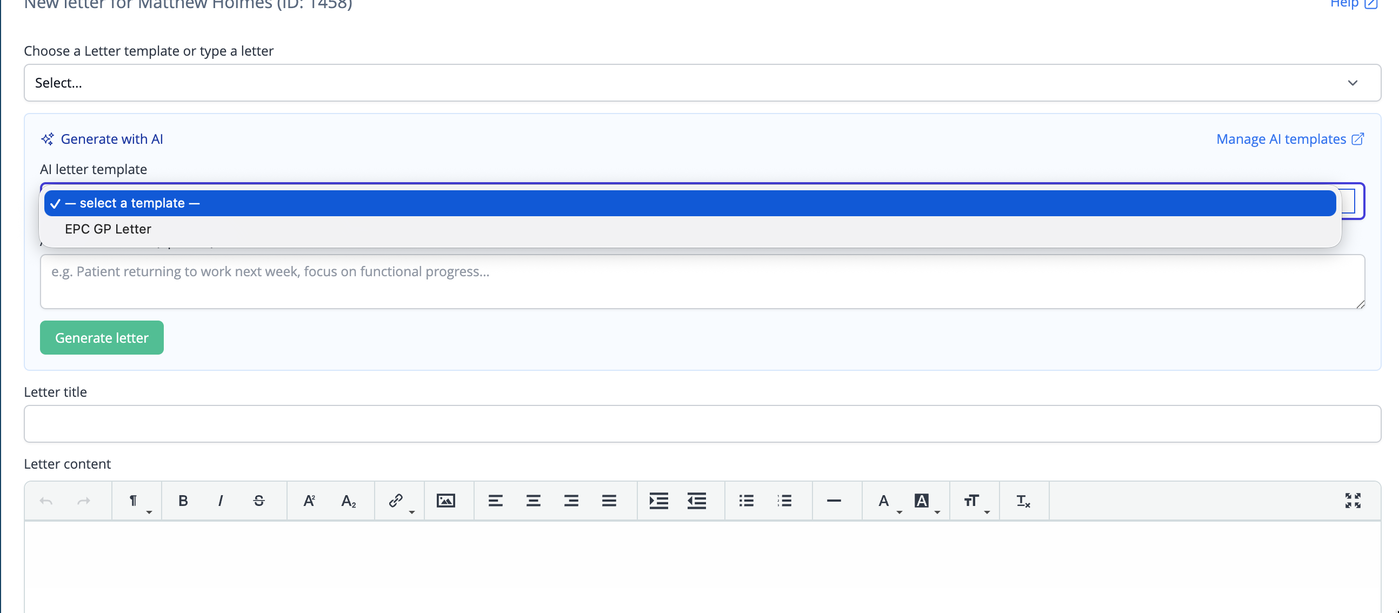
When you select a template, the page may show additional options depending on how the template was configured. If the template uses the patient's clinical notes, a Notes scope option appears letting you choose between Full history and Recent progress only. Full history passes a summary of all recorded notes to the AI. Recent progress only passes a summary of notes from the most recent period. Choose whichever is appropriate for the letter you are writing.

Adding Additional Context
Below the template selector, an Additional context field is available. This is a free-text box where you can type anything you want the AI to take into account that is not already in the patient's record or the template instructions. For example, you might note the specific concern you are referring the patient for, a particular treatment outcome you want highlighted, or a request from the GP that came in by phone. The AI will incorporate this context into the draft.
This field is optional. Leave it blank if the template and patient data are sufficient on their own.
Generating the Letter
Click Generate with AI. The button shows a loading spinner while the AI processes the request. This typically takes a few seconds. When complete, the letter body is filled with the AI-generated draft.
If you have reached your monthly letter generation limit, a message will appear instead of generating a draft. Contact your Super Admin if you need to check your current usage or plan.
Reviewing and Editing the Draft
The generated letter appears in the rich text editor and can be edited freely. Read through the full letter carefully before saving or printing. Check that patient details, dates, and clinical information are accurate. The AI works from the data available in the record — if information is missing or not yet entered, the AI will either omit that section or use a placeholder.
Make any edits you need directly in the editor. You can reformat, reword, add, or remove any part of the draft. The letter is not saved until you click Save.
If the draft is not suitable, you can clear the editor and start again — either by generating with AI again (the limit counts each generation), selecting a different AI template, or choosing a standard letter template from the Templates dropdown instead.
Saving and Printing
Once you are satisfied with the letter, click Save to record it against the patient's file. Saved letters appear in the Letters list on the patient's record and can be reopened, reprinted, or used as the basis for a follow-up letter.
Common Questions
Can I generate more than one draft to compare them?
Each click of Generate with AI uses one generation from your monthly allowance. If you generate multiple drafts for the same letter, each counts separately.
The AI used patient data I did not expect. Why?
Each template specifies which data it is designed to use — patient demographics, GP details, referrer details, third-party payer information, and clinical notes. This is configured in the AI Prompts settings page. If you are seeing data you did not expect, check the template configuration with your Super Admin.
Can I save a partially written letter and come back to it?
Yes. Save the letter at any point and reopen it from the Letters list on the patient's record. The rich text editor will contain whatever was saved.
Can non-AI letter templates still be used?
Yes. The AI template selector is separate from the standard Templates dropdown. If you prefer to use a standard word-processor template, select it from the Templates dropdown as normal. AI generation is an additional option, not a replacement.