
Overview
The AI Prompts page is found under Settings > Clinical Records > AI Prompts. It is where you configure the instructions that control how the AI formats transcriptions and generates letters. Two types of prompts are managed here: transcription prompts, which shape how consultation recordings are converted into structured clinical notes, and letter templates, which define different types of AI-generated letters.
Changes made on this page affect AI output immediately — the next AI session or letter generation will use the updated instructions.
Transcription Prompts
The transcription section shows the four consultation formats available in the AI Scribe widget: Standard Consultation, Initial Consultation, Re-examination, and Open Entry. For each format you can set a prompt at the user level (applying only to you) or at the practice level (applying to all users in the practice who have not set their own).
Each format shows its current status. If no custom prompt has been set, the format uses the built-in default. If a user-level prompt has been set, it takes priority over any practice-level prompt for that user. If only a practice-level prompt exists, all users in the practice share it.
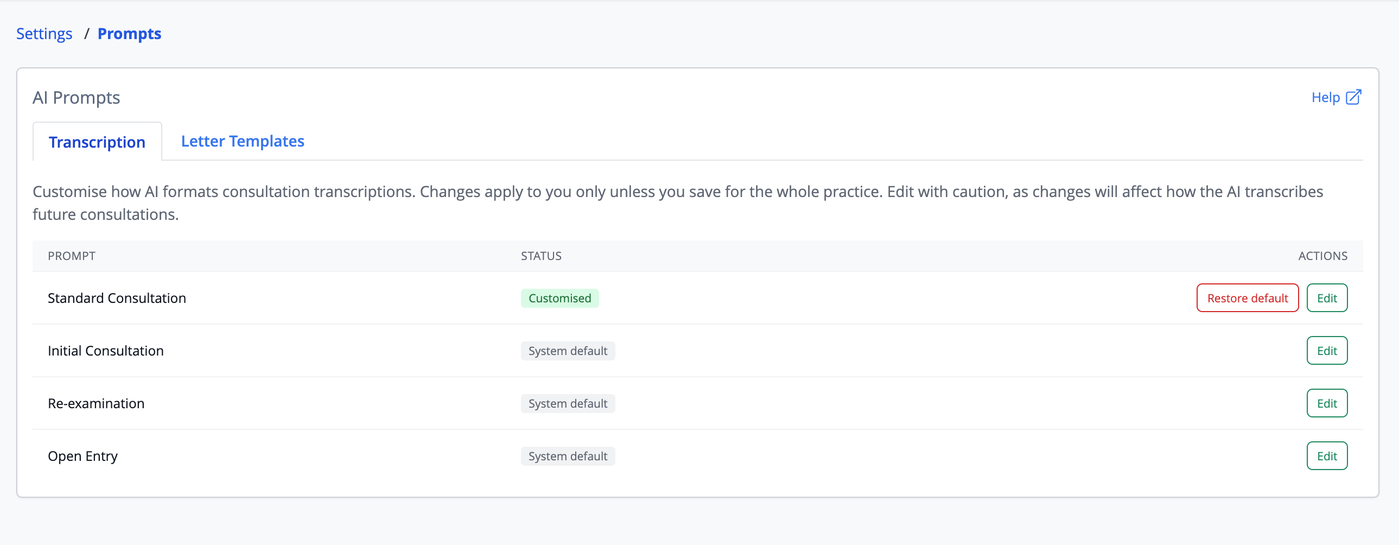
To edit a prompt, click the Edit button next to the format you want to change. A panel opens showing the current prompt text, which you can edit directly. There is also an “AI Wizard” to assist you in creating a prompt. Use the scope selector to choose whether to save as a user-level prompt (your personal preference) or a practice-level prompt (shared across the practice). Click Save to apply the change. To remove a custom prompt and revert to the default, use the Reset to Default option.
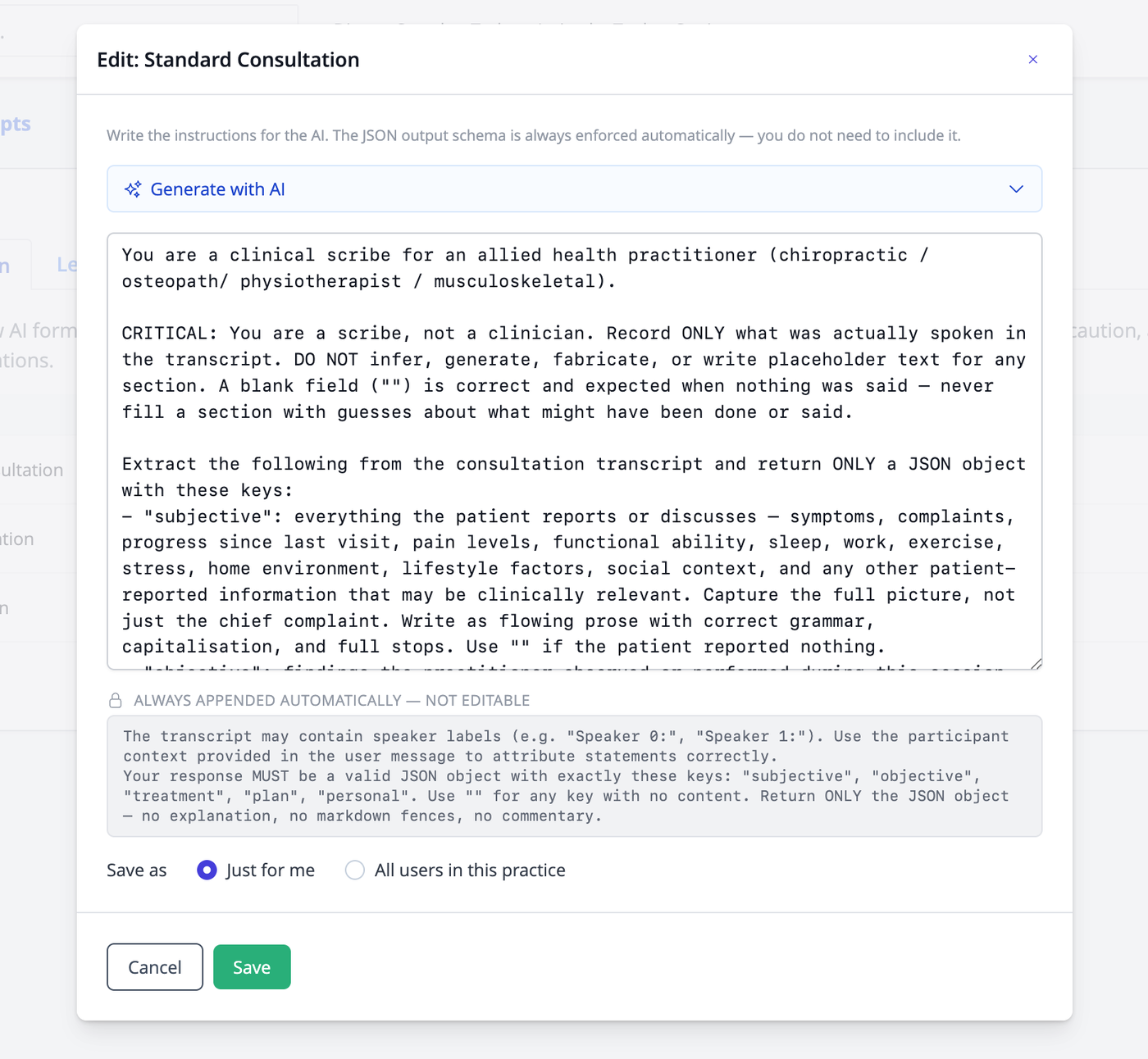
Take care when editing prompts as they will directly affect the output of any summaries produced.
Letter Templates
The letter templates section lists all AI letter prompts that have been created for the practice. Each template defines a specific type of letter — for example a GP referral, a WorkCover progress report, or a discharge summary. When a practitioner generates an AI letter, they choose from the templates listed here.
Each template shows its name, a brief description, and whether it draws on the patient's clinical notes.
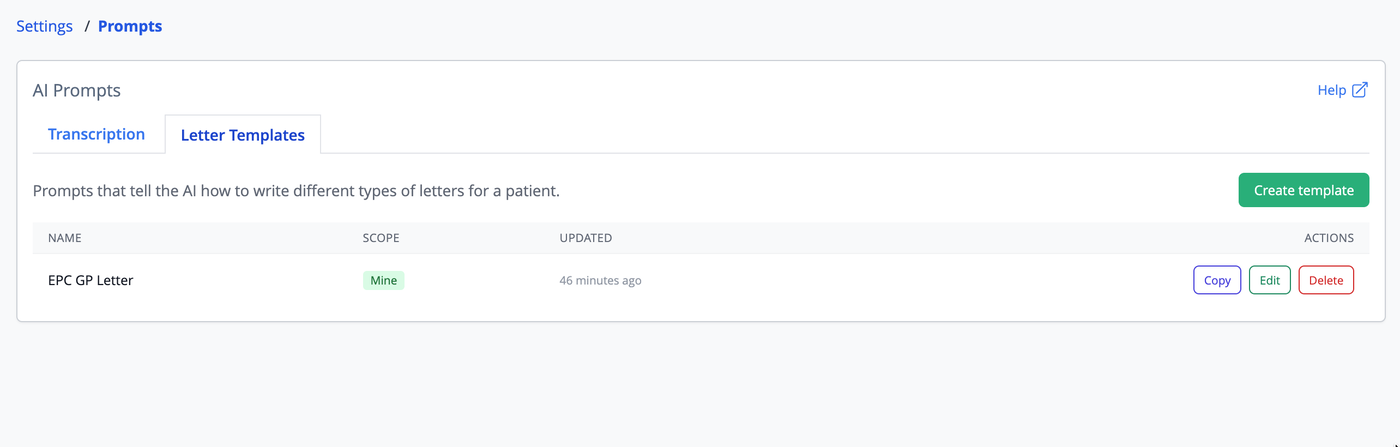
To create a new template, click Add Letter Template. You can either write the prompt manually or use the AI wizard to guide you through the process. To edit an existing template, click on it and make changes in the form. To duplicate a template as a starting point for a new one, use the Copy option on the template row. To remove a template permanently, use the Delete option.
Creating a Template with the AI Wizard
The AI wizard is a conversational tool that helps you build a letter prompt without needing to write instructions yourself. Click Use AI Wizard on the new or edit form to open it.
The wizard will ask you a series of questions about the letter — who it is addressed to, what information it should include, what tone it should use, and whether it needs to reference the patient's clinical history. Answer in plain language as you would explain it to a colleague. The wizard asks one or two questions at a time and builds up a picture of what the letter needs to do.
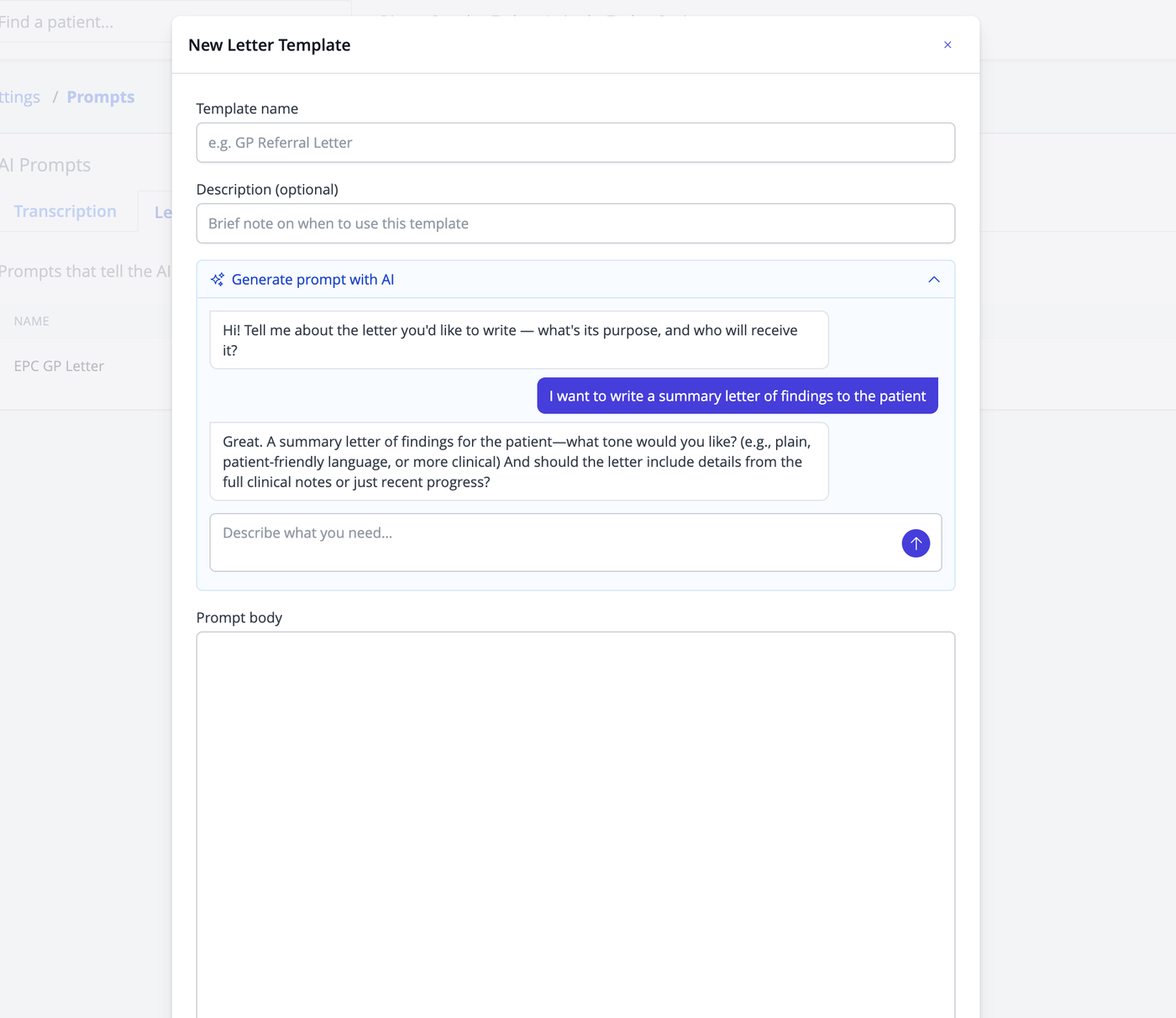
When the wizard has enough information, it produces a draft system prompt. You can review it and ask for changes in plain language before accepting it. Once you are happy with the result, click Use this prompt to copy it into the template form, then fill in the name and description and save.
If you are not happy with the wizard output at any point, you can close the wizard and write or paste your own prompt into the text area instead.
Template Data Options
When creating or editing a letter template, a set of data options lets you specify what patient information the AI will be given when generating letters from this template. The options include patient details (name, date of birth, address), GP details, referrer details, and third-party payer details. Tick only the options that are relevant to the letter type — information that is ticked will be automatically retrieved and passed to the AI each time the template is used.
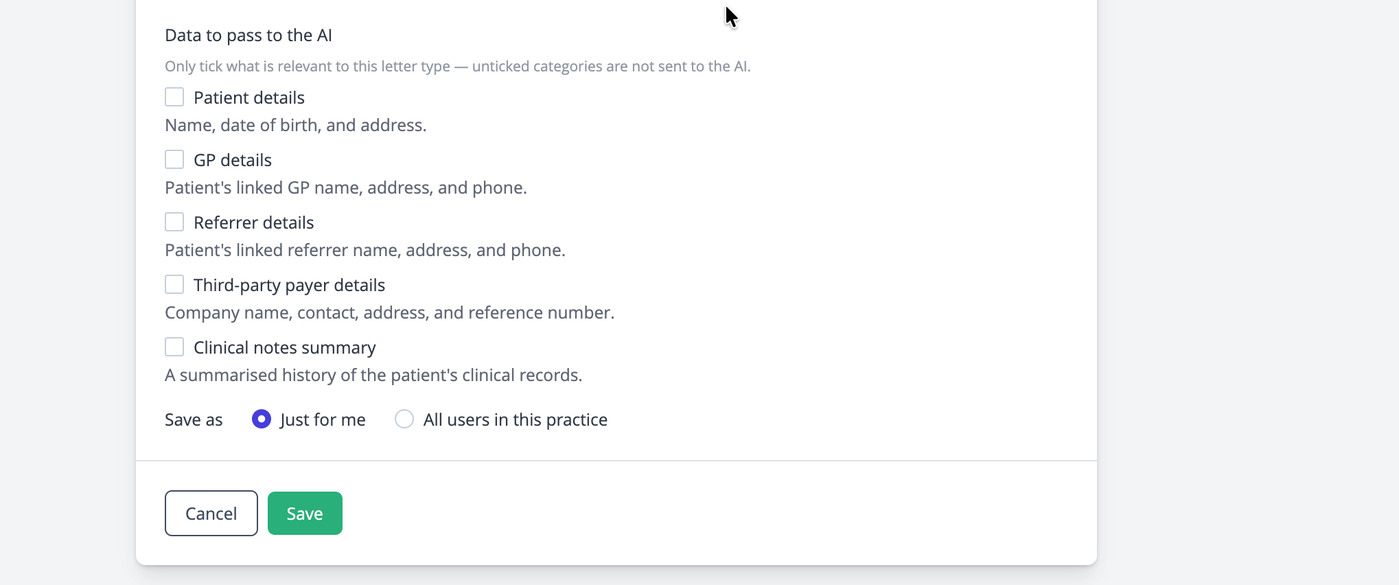
If the letter draws on the patient's clinical notes, tick the Uses clinical notes option. When this is on, the AI will be given a structured summary of the patient's note history. The practitioner generating the letter can then choose whether to use the full history or only recent progress notes.
Common Questions
What is the difference between a user-level and a practice-level transcription prompt?
A user-level prompt applies only to the person who created it. A practice-level prompt applies to everyone in the practice. If a user has set their own prompt, it overrides the practice-level prompt for them. This means practitioners with different preferences can each have their own customisation while a shared default covers the rest of the team.
Will changing a prompt affect notes that have already been saved?
No. The prompt only affects new AI sessions going forward. Notes that have already been formatted and saved are not changed.
Can I have multiple letter templates for the same type of letter?
Yes. You can create as many templates as you need. For example, you might have separate referral templates for GP letters and specialist letters, each with different tone and structure instructions.