
Overview
AI Scribe is a voice transcription tool built into the patient Records page. It listens to a consultation, converts speech to text in real time, and then uses AI to format that transcript into structured clinical notes. The formatted notes are inserted directly into the relevant sections of the record, saving you from typing after the appointment.
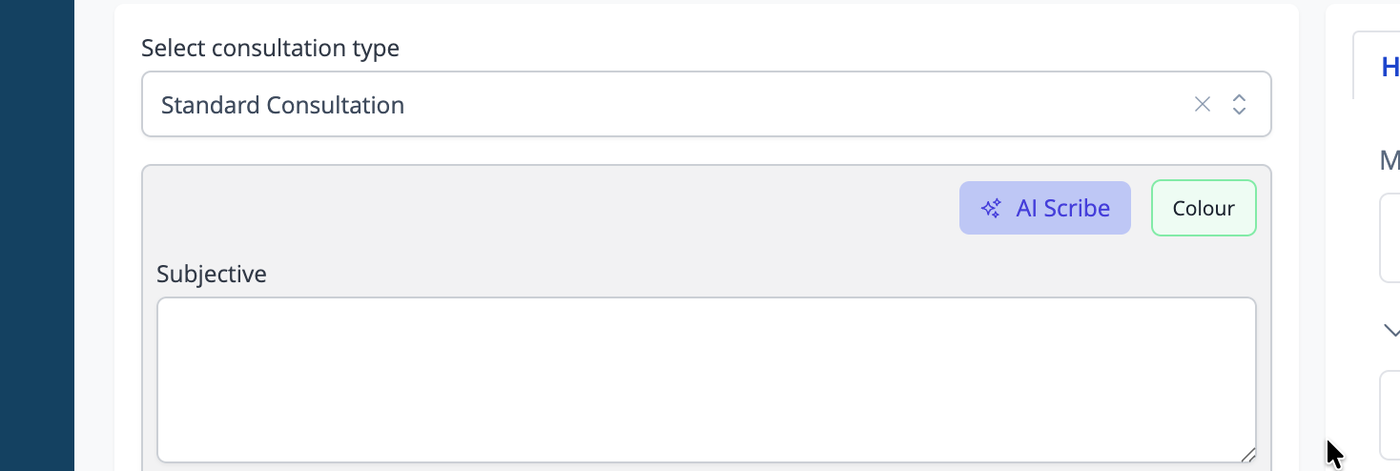
AI Scribe appears as a small microphone button in the top-right corner of the screen when you are on a patient's Records page. It stays in position as you scroll so it is always accessible during a session.

You must have AI access enabled on your user account to see the AI Scribe button. If it is not visible, contact the Account Admin for your practice.
Important
The AI Scribe feature uses artificial intelligence to assist with transcription and note generation. As with any AI-generated content, errors, omissions or interruptions in transcription may occur.
Practitioners should review all generated notes for accuracy and completeness before relying on or finalising them. AI Scribe is an assistive documentation tool and does not replace the practitioner's professional judgement or responsibility for maintaining accurate and appropriate clinical records.
Microphone Setup for Best Results
The quality of the audio captured by AI Scribe has a significant effect on both transcription accuracy and its ability to distinguish between speakers.
While AI Scribe can use your computer's built-in microphone, we recommend using a dedicated conference microphone for consultations. Laptop and desktop microphones are primarily designed to capture the person sitting directly in front of the computer. A patient sitting further away or to the side may be recorded at a much lower volume, making parts of the conversation more difficult to transcribe accurately.
This is particularly important when AI Scribe needs to distinguish between the practitioner, patient and any other people present. Clear, consistent audio from each person gives the AI more information to determine when the speaker has changed. Poor positioning, room echo, background noise and people speaking over one another can reduce the accuracy of both transcription and speaker identification.
For best results:
Use a USB conference microphone or speakerphone designed to capture voices from multiple directions.
Position the microphone centrally between the practitioner and patient, rather than beside or behind the computer.
Keep the microphone reasonably close to everyone speaking.
Minimise background noise where practical.
Avoid speaking over one another.
When starting the consultation, check the audio level meter in AI Scribe to confirm that both practitioner and patient voices are being picked up clearly.
A conference microphone does not need to be expensive. The important feature is that it is designed for room or multi-person voice capture, rather than primarily capturing the person using the computer.
Tip: If AI Scribe consistently transcribes one person well but misses or incorrectly attributes the other person, microphone placement or microphone choice should be the first thing to check.
Starting a Recording
Click the AI Scribe button to open the widget. Before starting, choose the notes format that matches the consultation type. The format will default to which of teh note formats you currently have selected. The available formats are Standard Consultation, Initial Consultation, Re-examination, and Open Entry. Standard Consultation and the other structured formats will produce notes divided into clinical sections. Open Entry produces a single free-text block.
You can also choose which microphone to use from the Microphone dropdown. The system default is selected automatically, but if you have multiple input devices you can pick a specific one. Your selection is remembered for future sessions.
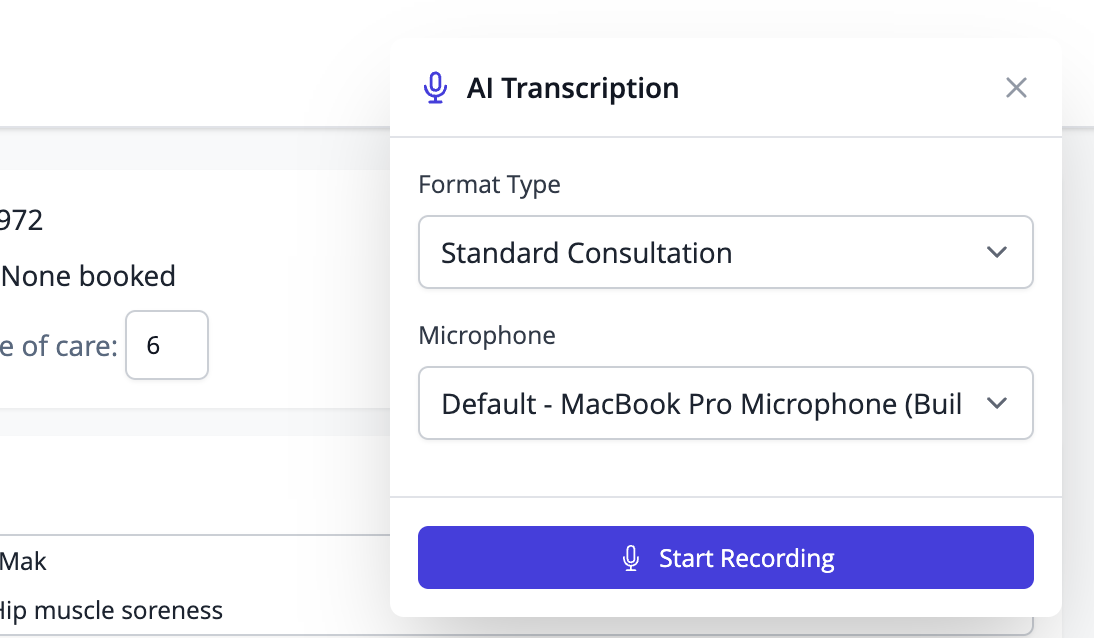
Once you have set the format and microphone, click Start Recording. The widget shows a live audio level meter and a running timer so you can confirm the microphone is picking up sound.
During the Recording
The widget shows a live preview of the transcript as speech is recognised. This is a working draft — it updates continuously and may adjust as the AI transcription service processes the audio. The final transcript used for formatting is produced when you stop the recording, not from the live preview.
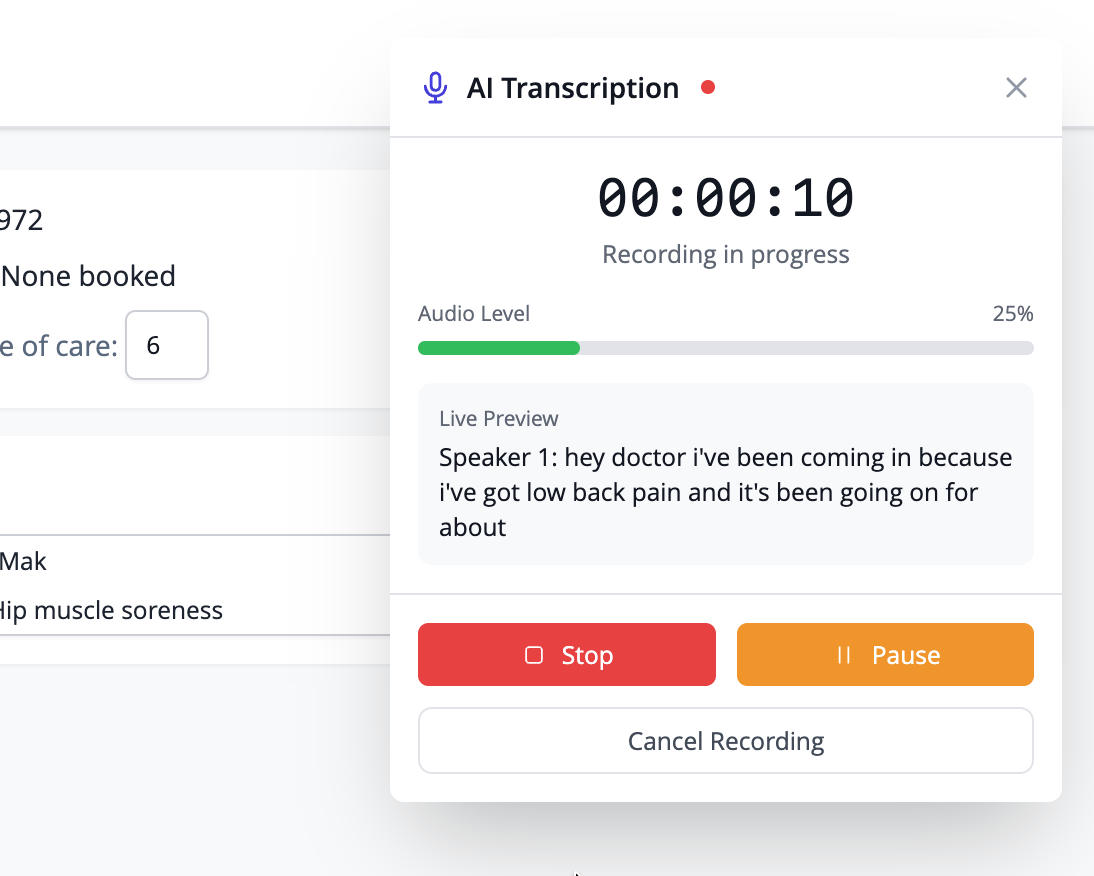
To pause mid-session, click Pause. This stops the timer and puts the microphone on hold. Click Resume to continue. The transcript accumulates across all paused and resumed segments in a single session.
To cancel a recording entirely without saving anything, click Cancel Recording.
Reviewing the Transcript
When you click Stop, the recording ends and the system produces a final transcript. The widget moves to the review screen, where you can read through what was captured before submitting it for AI formatting.
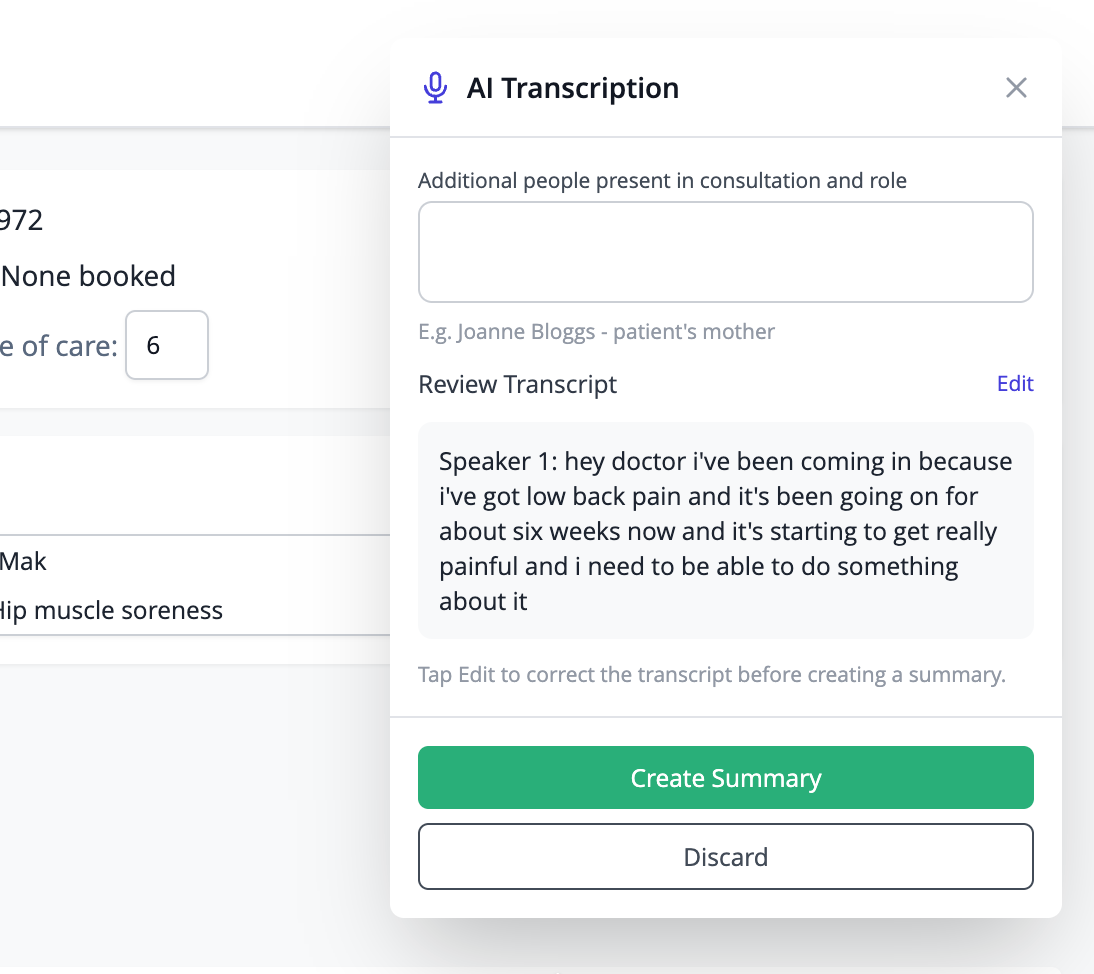
If the transcript contains errors — mishearing of names, specialist terms, or similar — click Edit to open the transcript in a text editor. Make any corrections you need, then click Done. Clicking Done saves the corrected version to the autosave, so if anything goes wrong during the next step your edits are preserved.
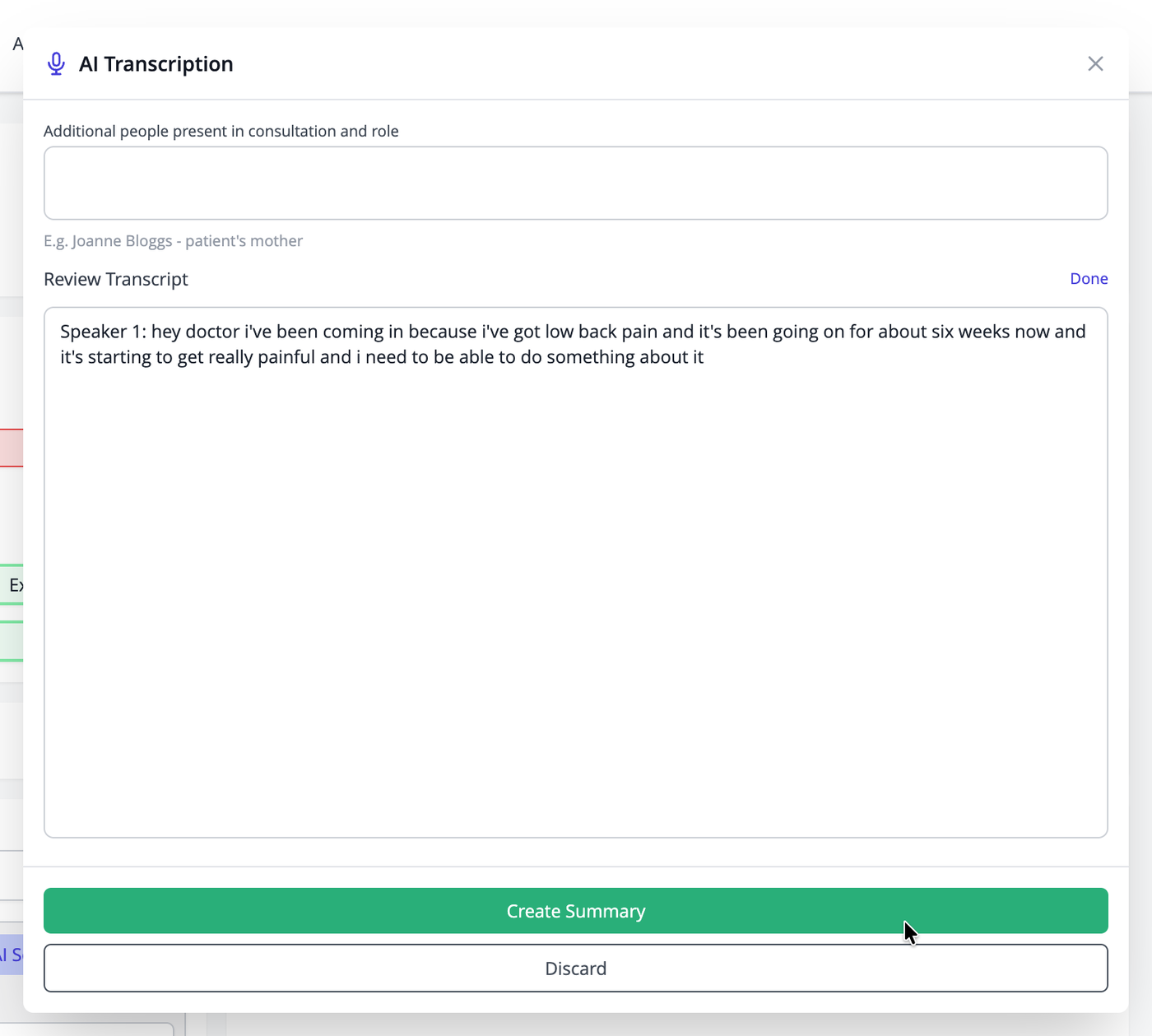
You can also note any additional people present during the consultation, such as a parent or carer, in the field provided. This information is passed to the AI and helps it correctly label speaker segments.
When you are satisfied with the transcript, click Create Summary to submit it for AI formatting. Click Discard to throw away the recording and start again.
AI Formatting
After you click Create Summary, the widget shows a spinner while the AI processes the transcript. This typically takes five to fifteen seconds depending on the length of the consultation. The widget remains open during this time.
On success, the formatted note is inserted into the appropriate sections of the record automatically and the widget closes. For structured formats (Standard, Initial, Re-examination) the content is placed into the Subjective, Objective, Treatment, and Plan fields. For Open Entry it goes into the main text area.
If the formatting step fails — for example due to a temporary connection issue — an amber notification appears in the widget explaining what happened. The raw transcript is shown below the notification so you can see it has been preserved. Three options appear: Retry formatting submits the transcript to the AI again from scratch, Save as raw inserts the unformatted transcript directly into the note so you have a starting point to edit manually, and Discard removes the session entirely.
Autosave and Recovery
The transcript is saved automatically to your browser's local storage as soon as the recording stops. This autosave is updated again when you click Done after editing, so your corrected version is always preserved.
If the page is accidentally closed or refreshed before you have accepted or discarded the transcript, you will be prompted to restore it the next time you open the Records page for that patient. Click Restore to pick up where you left off, or dismiss the prompt to clear the autosave.
The autosave is cleared automatically when you accept a formatted note or click Discard.
Using AI Scribe with Specific Note Sections
On the Records page, each clinical section (Subjective, Objective, Treatment, Plan, and Open Entry) has its own AI Scribe button. Clicking a section button opens the widget with the format pre-set to the most appropriate type for that section. You can change the format before recording if needed.
Common Questions
Does AI Scribe record the entire consultation automatically?
No. Recording only starts when you click Start Recording and stops when you click Stop. Nothing is captured before or after those actions.
Does the patient need to consent to being recorded?
Recording consent requirements vary by jurisdiction and practice type. iconpractice does not manage consent — this is your practice's responsibility to handle in accordance with your local obligations.
The live preview does not look right. Does that matter?
The live preview is a rolling draft and may differ from the final transcript. The final version is produced after you click Stop and is what gets formatted. Review the final transcript on the review screen before submitting.
Can I use AI Scribe for a follow-up session on the same patient the same day?
Yes. Each recording session is independent. You can run multiple sessions for the same patient and accept each one separately.
What happens if the microphone cuts out mid-session?
If the connection to the transcription service drops unexpectedly, the widget will show an error message. Any transcript captured up to that point is preserved in the autosave. You can attempt to continue by starting a new session — on stop, the new transcript will be appended to the saved one and both will be available for review.