
Overview
The Add a Task feature allows you to create new tasks for patient follow-ups and practice management activities. You can customize the task with various details and options to ensure proper tracking and completion.
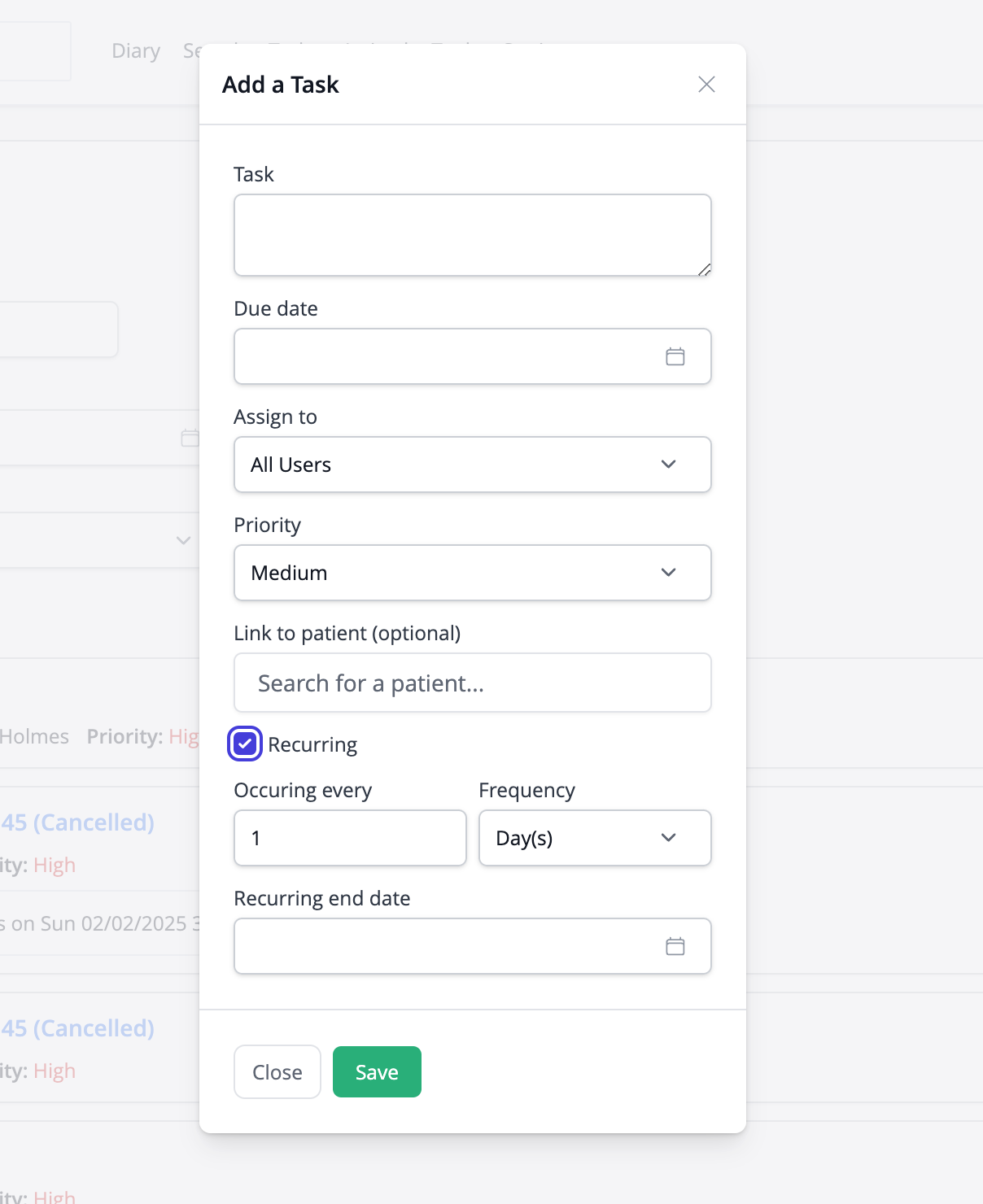
Task Creation Fields
Basic Information
- Task: Enter a detailed description of the task to be completed
- Due date: Select when the task should be completed
- Assign to: Choose which staff member should handle the task
- Options include individual users or "All Users"
- Priority: Set the importance level of the task
- Options include High, Medium, and Low priorities
Additional Options
- Link to patient (optional): Connect the task to a specific patient record
- Use the search field to find and select a patient
- This creates a direct link between the task and patient file
Recurring Tasks
- Recurring: Check this box to create a repeating task
- Occurring every: Specify how often the task should repeat
- Enter a number and select the frequency (days, weeks, months)
- Recurring end date: Set when the recurring task should stop repeating
Saving the Task
- Save: Creates the task with all specified settings
- Close: Cancels task creation and returns to the Tasks screen
Once saved, the task will appear in the task list for the assigned users to view and complete.