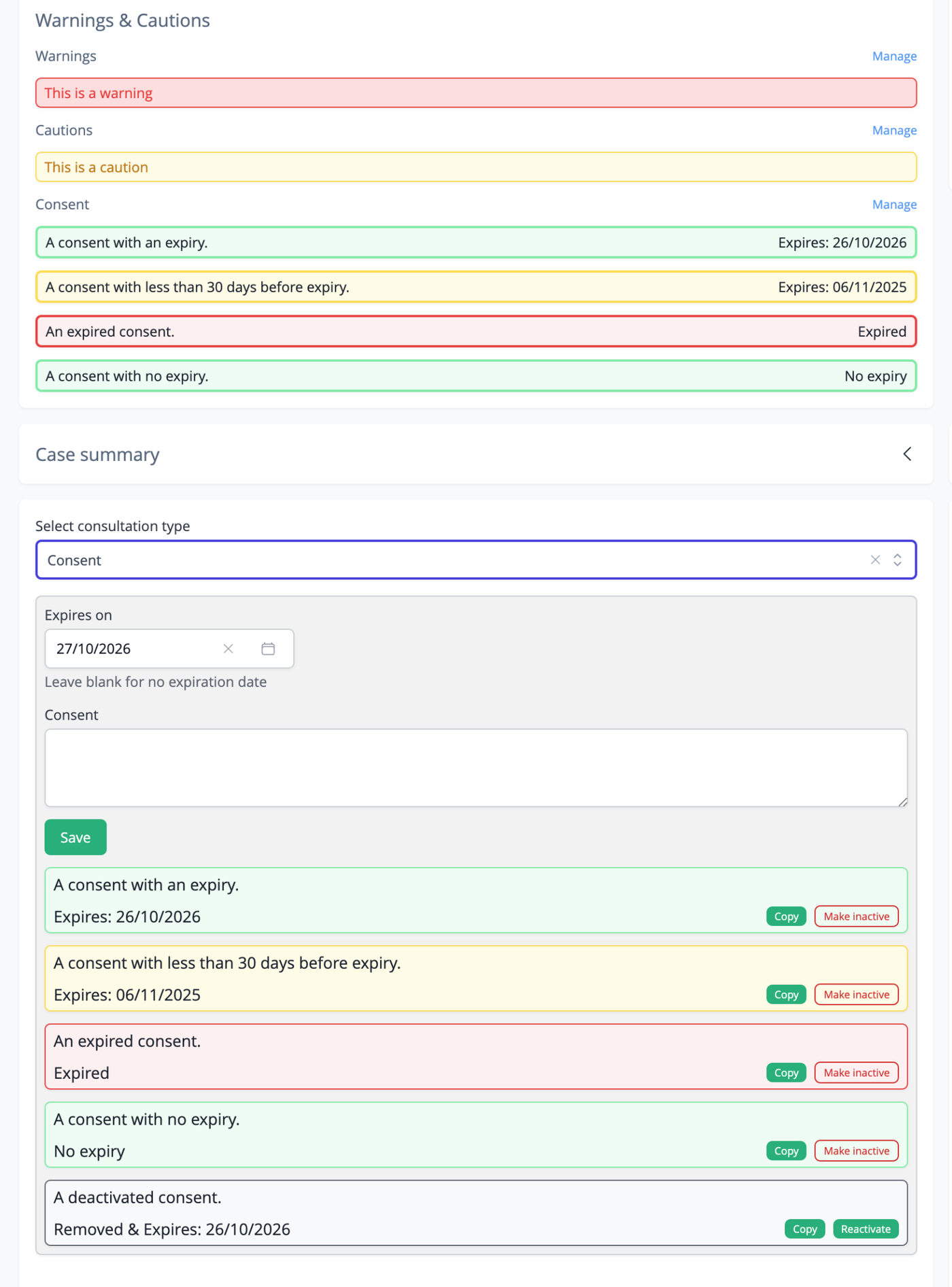
To allow you to record and manage a patient's consent to treatment we have the "Consent" section on the Clinical Records page.
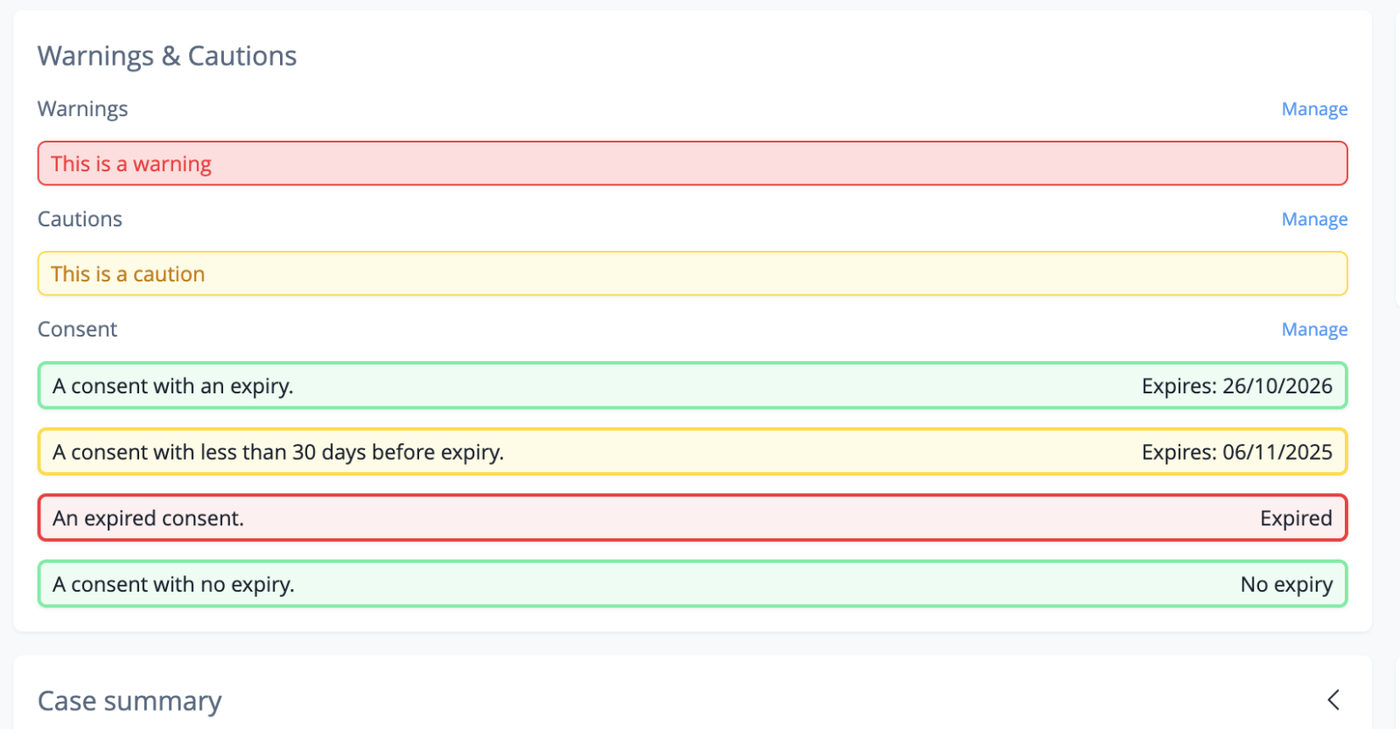
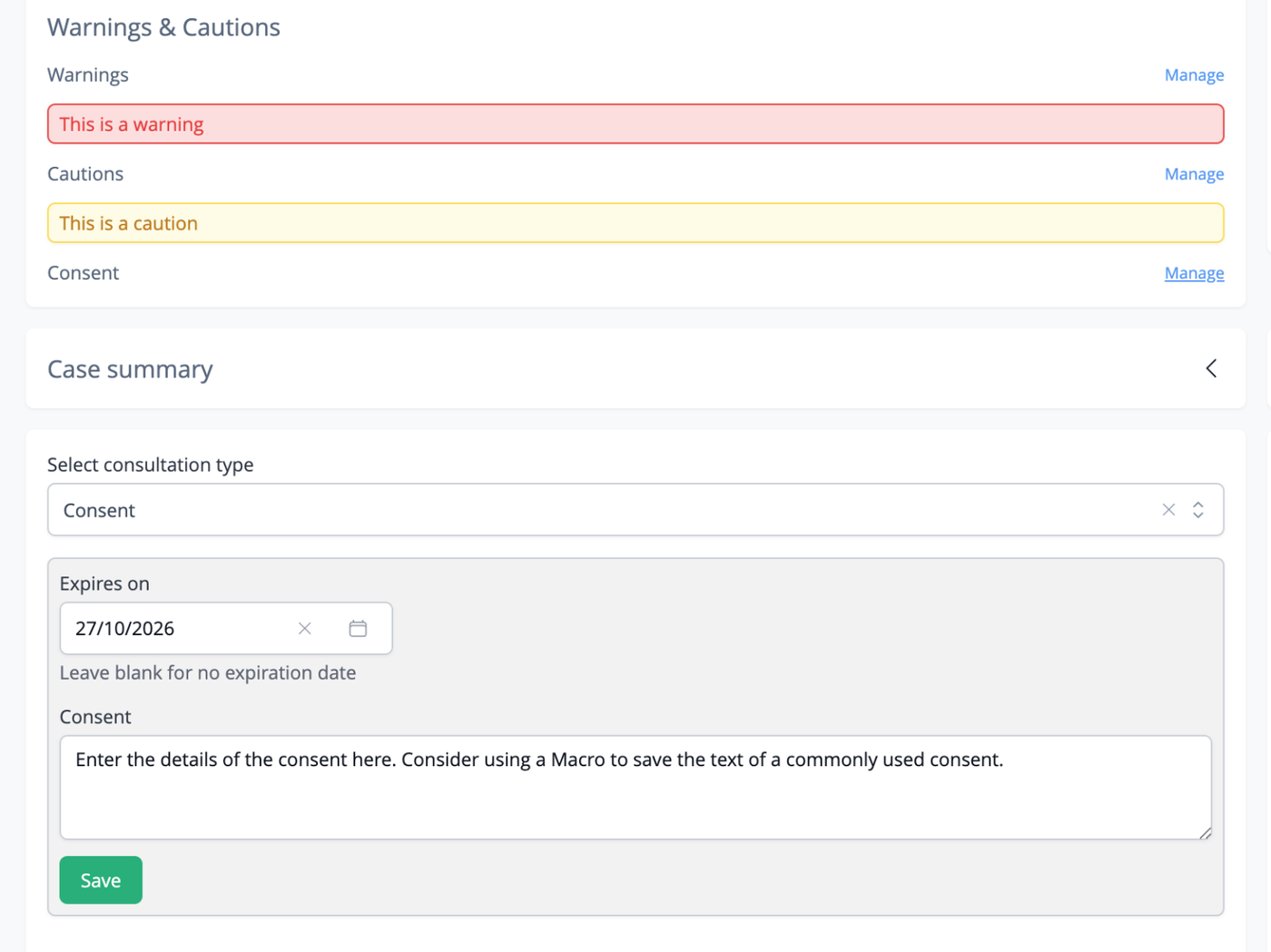
To manage consents, click the "Manage" link to the lefthand side of the "Consent" heading.
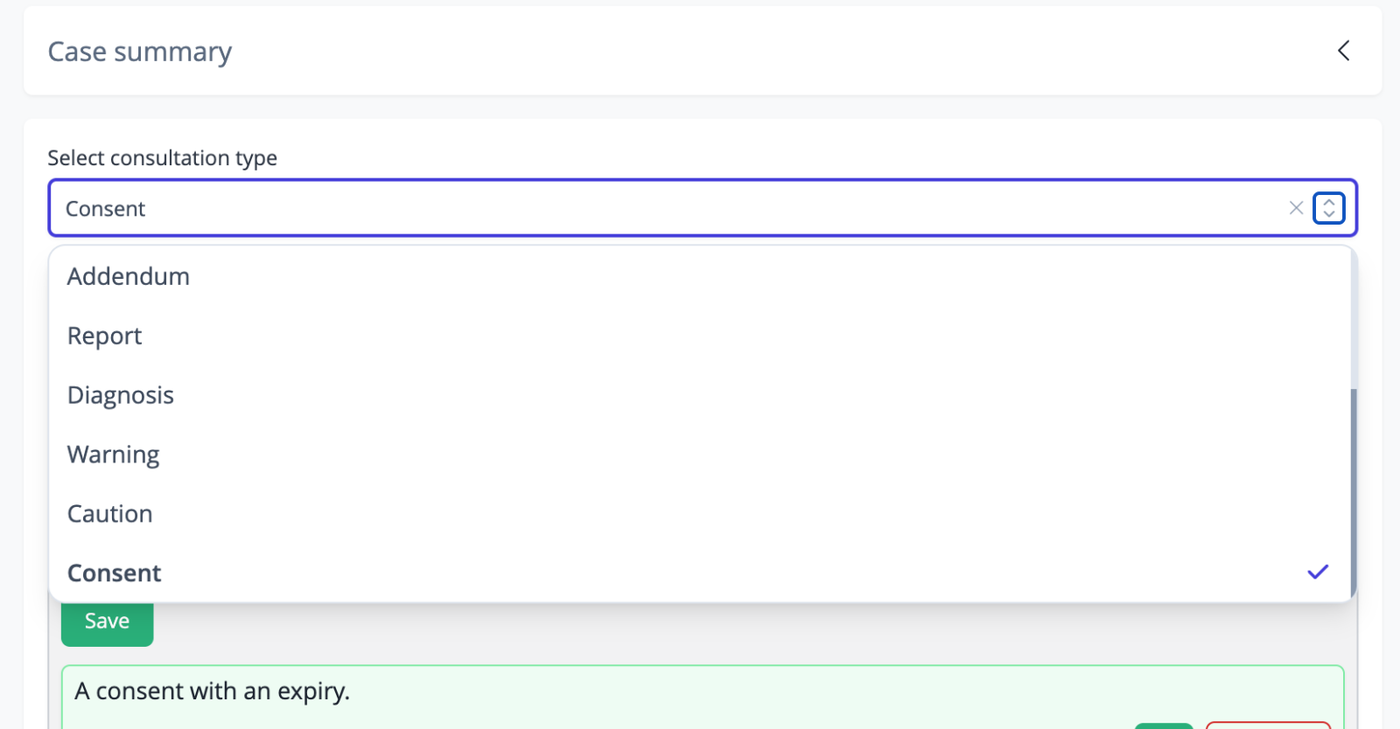
Alternatively, you can select "Consent" from the drop down "Select a consultation type" menu.
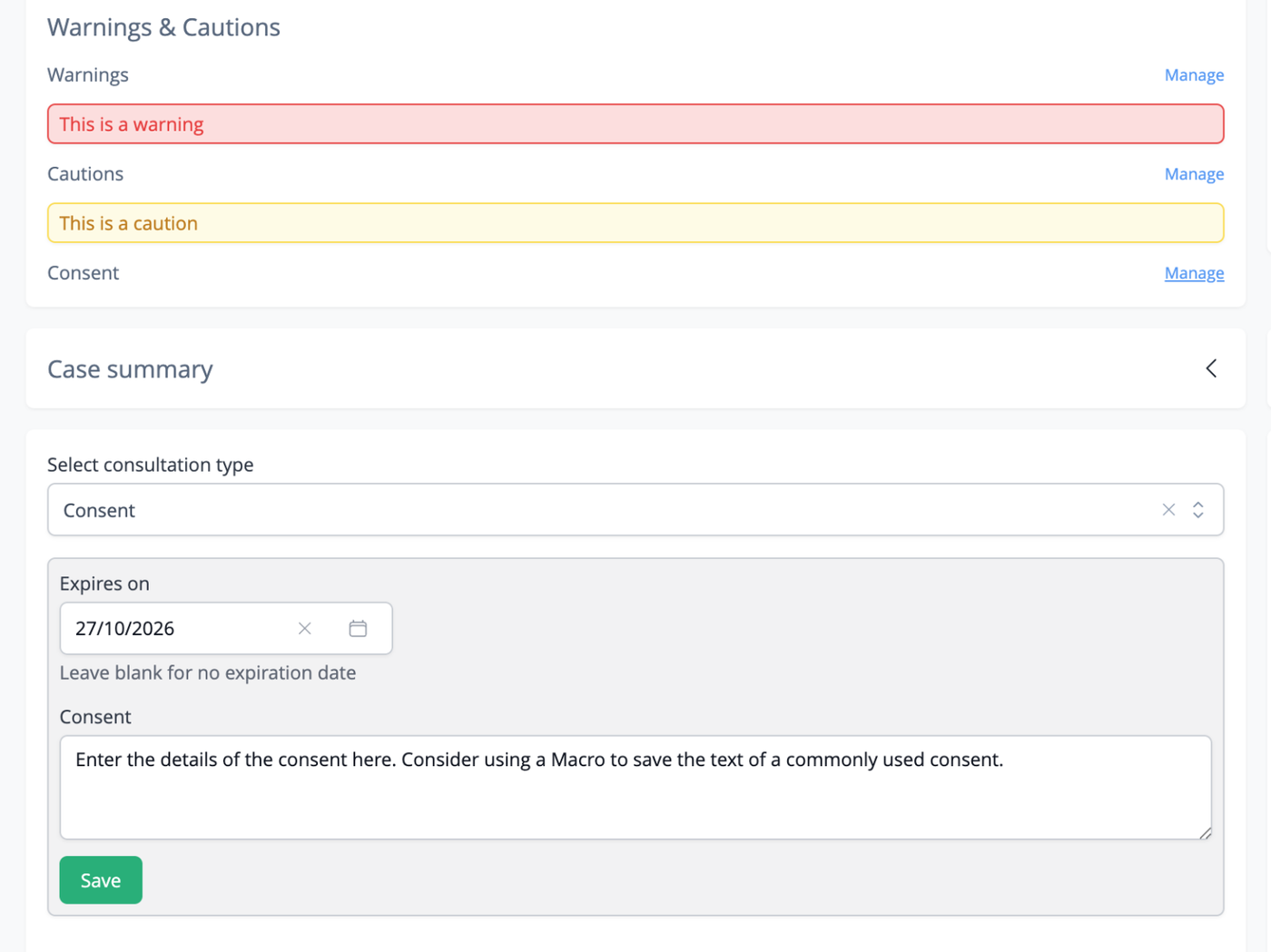
When creating a consent, enter the text for the consent in the text area. You may wish to create a Macro for commonly created consents to speed up your processes (details on creating Macros here). The expiry date will default to 12 months from the date of entry. You may adjust this using the datepicker or leave it blank to create a record with no expiry date.
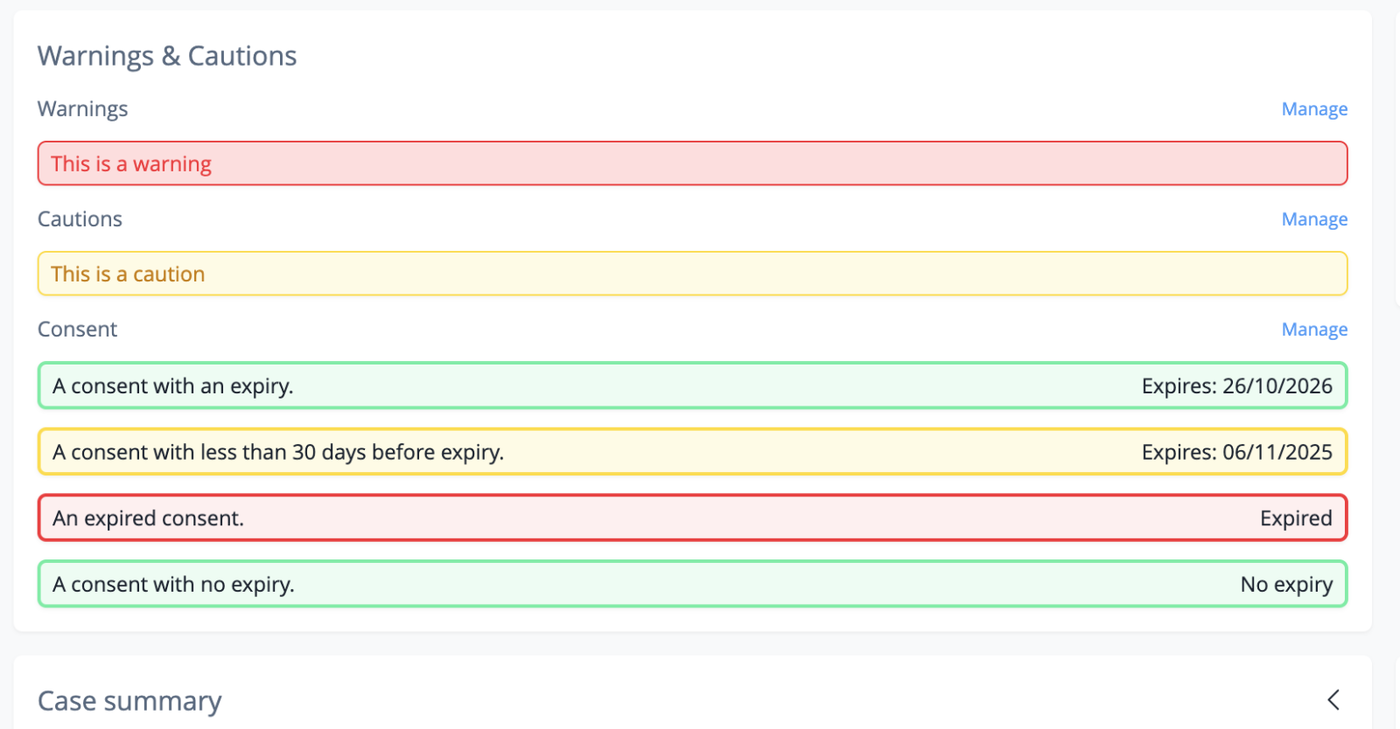
Current consents will display in the Consent area as follows:
- Current or consents with no expiry will be colored green.
- Consents with less than 30 days until expiry will be colored yellow.
- Expired consents will be colored red.
You can copy and deactivated/reactivate consents using the buttons in the consent management area.