
Overview
iconpractice can connect to your Xero accounting software to export sales and payment data directly, simplifying your bookkeeping and bank reconciliation. The integration posts invoices to Xero grouped by payment type, so that the totals match the way your bank batches deposits.
Setup involves three steps: connecting your Xero account, configuring which revenue accounts income is posted to, and setting up payment groups so that your payment types are grouped the same way your bank deposits them. Once that is done, you can export transactions to Xero at any time.
Jump to the bottom of the page to view a video of this process.
Connecting to Xero
Go to Settings, then choose Integrations from the side menu, then select Xero. The Connection Status section shows whether iconpractice is currently connected to your Xero organisation.
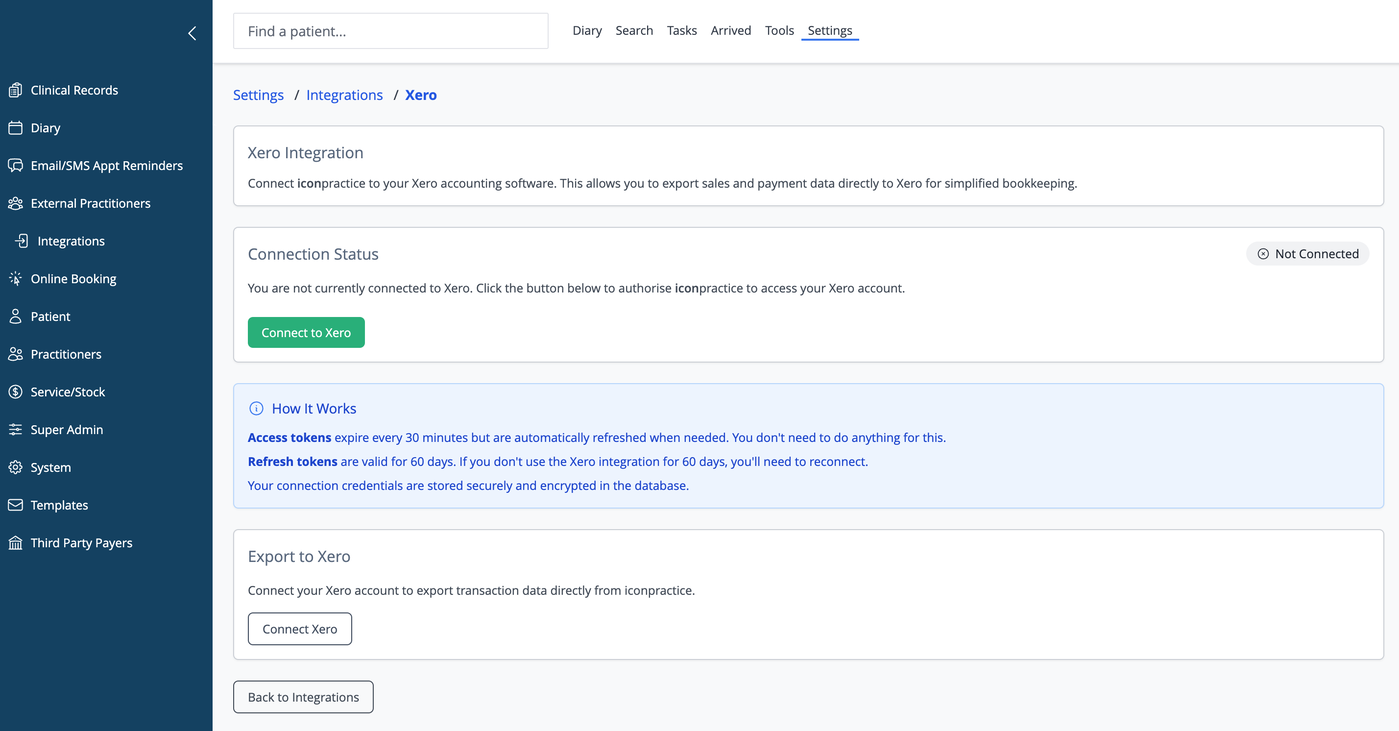
To connect for the first time, click Connect to Xero. You will be taken to Xero to enter your login details and approve access for iconpractice. Once you approve, you will be returned to iconpractice and the status will update to Connected, showing your organisation name and connection date.
If your connection has expired (this happens if the integration is not used for 60 days), the status will show as Expired. Click Reconnect to Xero to restore the connection without losing your settings.
To remove the connection, click Disconnect from Xero. You will need to reconnect before you can export again.
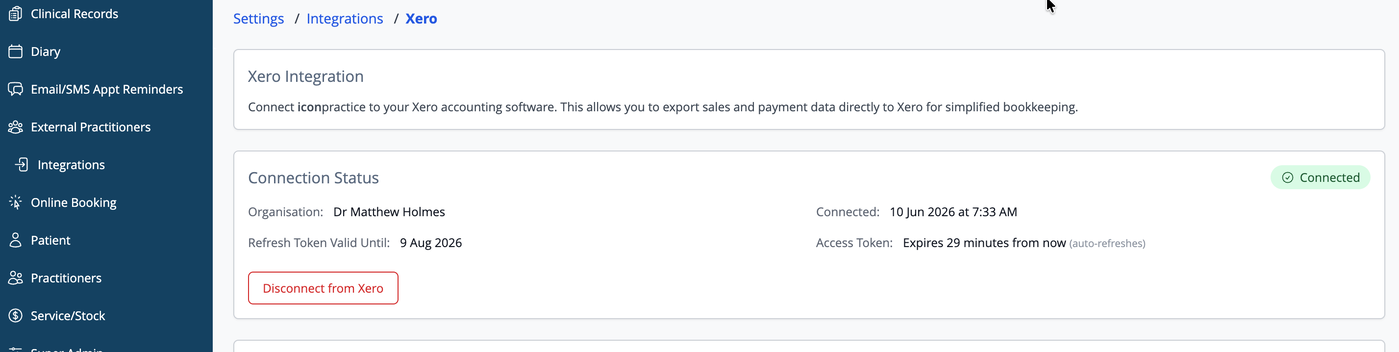
Note on token refresh: Xero access tokens expire every 30 minutes but are refreshed automatically in the background. You do not need to do anything for this. Refresh tokens are valid for 60 days, meaning if you do not use the Xero integration at all for 60 days, you will need to reconnect.
Xero Settings
Once connected, the Xero Settings section appears on the same page. This is where you specify which accounts in your Xero chart of accounts income will be posted to.
Tax-free revenue account is the account used for income that has no tax applied. Taxed revenue account is the account used for income with tax. Many practices post both types to the same revenue account, which is fine. Select the appropriate account from each dropdown. You may wish to consult with your accountant about which accounts to use.

Invoice status controls how invoices appear in Xero after export. Draft means invoices are created but not yet approved, allowing you to review them in Xero before they are finalised. Approved means invoices are posted directly as approved and ready for reconciliation. Choose whichever suits your accounting workflow.
Click Save Settings after making any changes here.
Export Payment Groups
Before exporting, you need to set up payment groups. These groups tell iconpractice how to combine your payment types when posting to Xero, so that the totals match how your bank batches deposits. For example, EFTPOS, Visa and Mastercard are often deposited together by the bank, so they should be in the same group.
Go to Settings, then System Settings, then Export Payment Groups.
The Payment Groups section lists the groups you have already created, along with which payment types are assigned to each. Any payment types not yet assigned to a group are shown in an orange warning panel at the top of the page. Payment types without a group will not be included in export totals, so it is important to allocate all of them.
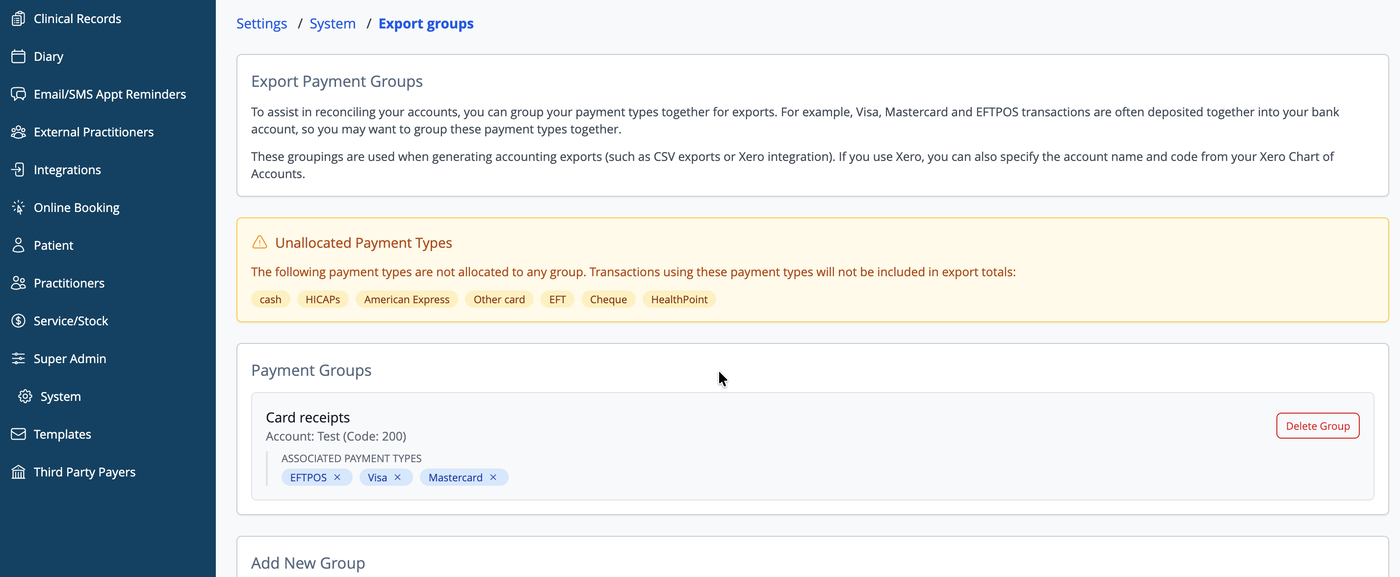
To create a group, scroll to the Add New Group section. Enter a description for the group, for example Card Payments or HICAPs. If you are connected to Xero, a Xero Account dropdown will appear listing your bank accounts from your Xero chart of accounts — select the account that these payments are deposited into and the account name and code will be filled in automatically.

If you are not connected to Xero, you will instead see separate Account Name and Account Code fields where you can enter the details manually, or you can leave them blank and fill them in later after connecting. Click Create Group to save it.

Typical groups for a practice using the system are: Card Payments (covering EFTPOS, Visa, Mastercard, and Other Card), HICAPs, Cash (covering cash and cheque), EFT, American Express and HealthPoint (Tyro) if you accept it.
To link payment types to a group, use the Link Payment Types to Groups section below the group list. Select the group from the first dropdown, select the payment type from the second dropdown, and click Link Payment Type. Repeat this for each payment type. The Link Payment Types section only appears when there are groups and unallocated payment types remaining.
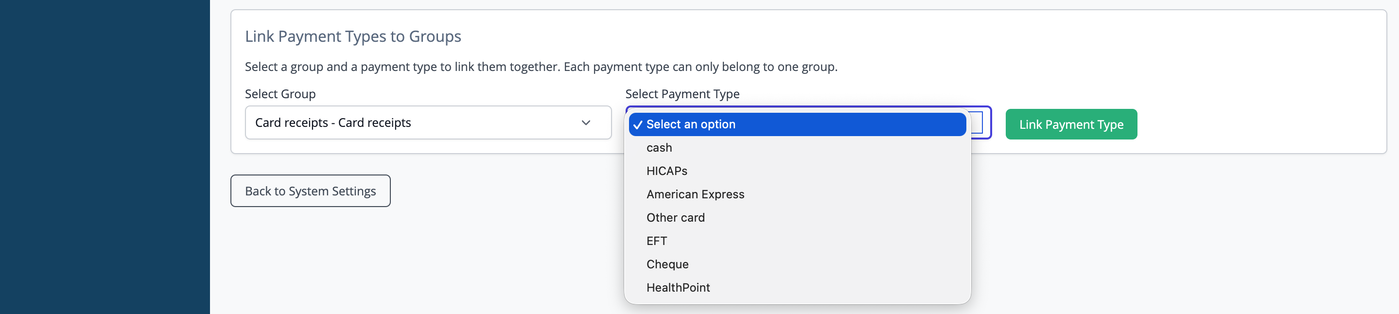
To remove a payment type from a group, click the small X on the payment type tag inside the group. To delete an entire group, click Delete Group on the group card. Deleting a group also removes all payment type links within it.

Exporting Transactions to Xero
Once your settings and groups are configured, you can export at any time. Go to Settings, then Integrations, then Xero. The Export to Xero section appears at the bottom of the page when you are connected.

Select the From date and To date for the transactions you want to export, then click Export to Xero. iconpractice will post the transactions to Xero grouped by your payment groups.
We recommend only exporting complete days. Avoid exporting a day that is still in progress, as transactions added after the export will not be included. Either export up to the previous day, or wait until close of business on the current day before exporting.
To confirm the export worked, check the Sales section of Xero. The invoice should appear there with the status you configured (Draft or Approved).
Common Questions
What if a payment type is not appearing in my exports?
Payment types that are not assigned to a group are excluded from exports. Check the Export Payment Groups page for an orange warning listing any unallocated types, and link them to an appropriate group.
Do I need to export every day?
No. You can select any date range when exporting. Many practices export weekly or at the end of each month. Just make sure the date range you select does not overlap with a previous export, as this would result in duplicate entries in Xero.
What happens if I disconnect from Xero?
Your payment groups and revenue account settings are preserved. You will need to reconnect before you can export again, but you will not need to redo your configuration provided you are connecting to the same Xero account.
Can I have a payment type in more than one group?
No. Each payment type can only belong to one group. If you need to reassign a payment type, remove it from its current group first using the X on the payment type tag, then link it to the new group.