
Overview
The System Email Templates section allows administrators to customize standard emails sent by the system to patients and staff. These templates control the content and appearance of automated communications for appointments, forms, invoices, and online bookings.
Accessing Email Templates
Navigate to Settings in the top menu
Select System from the sidebar menu
Click on System email templates
Email Templates List
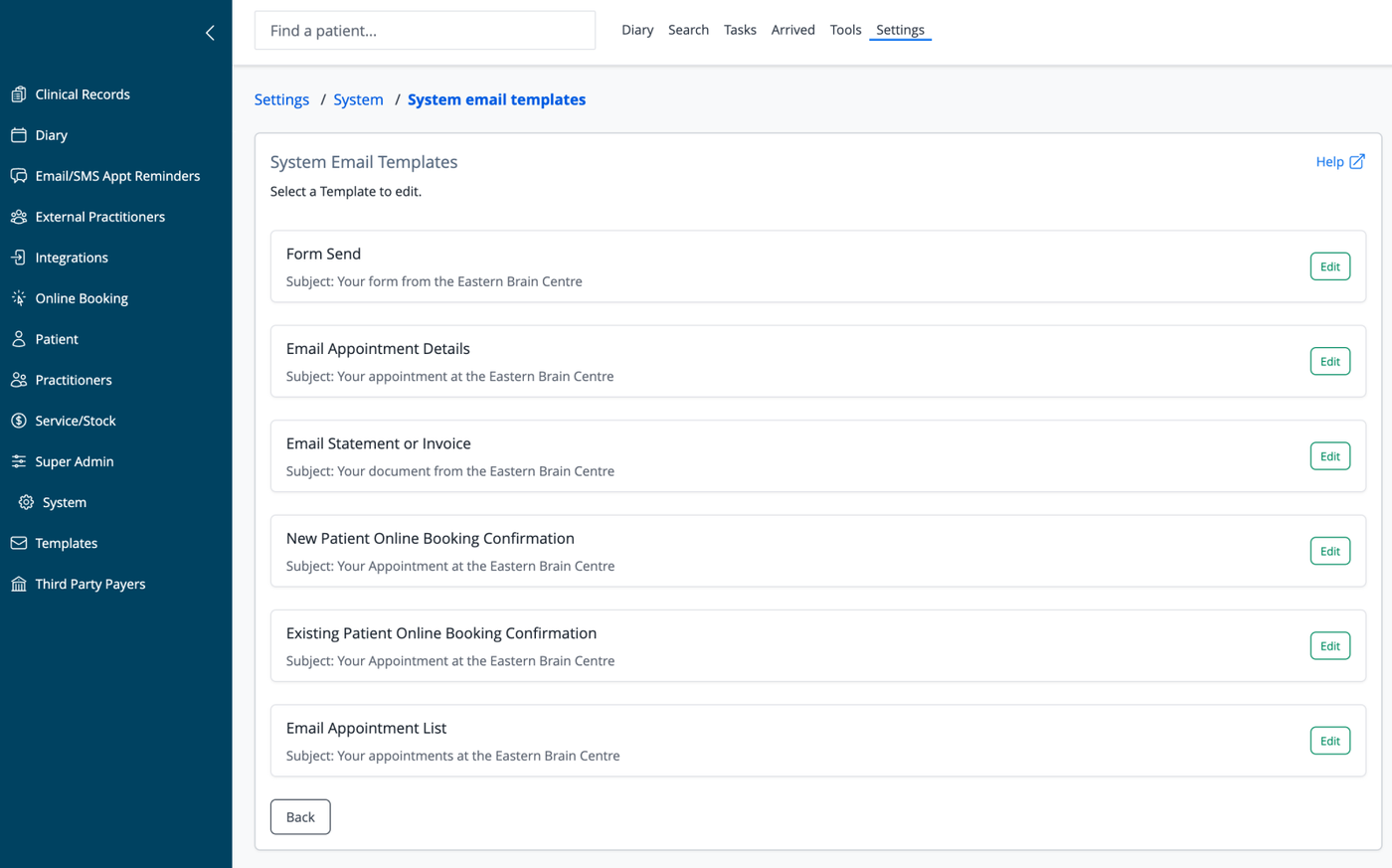
The main screen displays all available system email templates:
Form Send: Emails used when forms are sent to patients
Email Appointment Details: Details of an individual upcoming appointment
Email Statement or Invoice: Emails containing financial documents
New Patient Online Booking Confirmation: Confirmations for first-time patients
Existing Patient Online Booking Confirmation: Confirmations for returning patients
Email Appointment List: Summary of multiple appointments
Each template displays:
Template name
Email subject line preview
Edit button to modify the template
Editing Email Templates
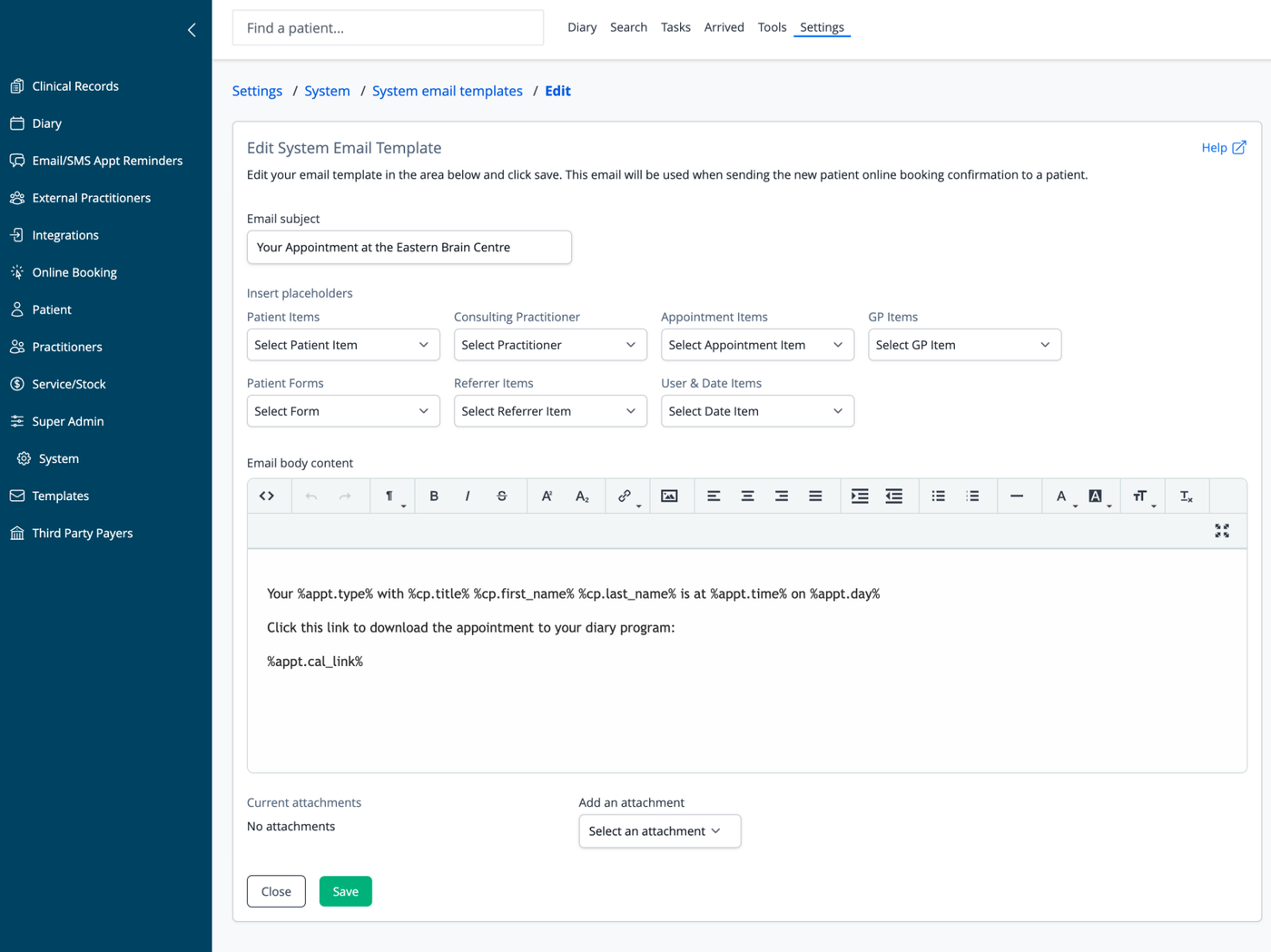
To edit a template, click the "Edit" button next to the template name. The editing form includes:
Email Subject
Customize the subject line that recipients will see
Default format typically includes your practice name
Note: placeholders cannot be used in the subject
Insert Placeholders
The system provides various placeholder categories that dynamically insert patient-specific information:
Patient Items: Name, date of birth, contact details, etc.
Consulting Practitioner: Provider name, title
Appointment Items: Date, time, type, and calendar link.
GP Items: Medical doctor information
Patient Forms: If the appointment type has a linked form, this will be inserted
Referrer Items: Referring doctor information
User & Date Items: System user and timestamp information
Each category has a dropdown menu of available placeholders.
Email Body Content
Rich text editor with formatting options:
Text formatting (bold, italic, underline)
Font size and type controls
Alignment and list options
Link insertion
Image embedding
Using Placeholders
Placeholders appear in the format %category.field% and are automatically replaced with actual data when emails are sent. Examples include:
%appt.type%- Type of appointment%cp.title%- Practitioner's title%cp.first_name%- Practitioner's first name%cp.last_name%- Practitioner's last name%appt.time%- Appointment time%appt.day%- Day of appointment%appt.cal_link%- Calendar file download link
Form Placeholders
The online booking confirmation emails can contain placeholders which will automatically insert a link to a form that you wish to have the patient complete. Form links can be inserted in new and existing patient confirmation emails for online booking. Form Links should be contained within Form Blocks.
The Form Block will only be included if there is a form specified for that appointment type. If not the Block will be removed from the email. This allows you to include text about the form that won't look out of place if a form is not included. Use the ‘Form Block Start’ placeholder to tell the system where the form related text starts, and the ‘Form Block End’ placeholder to denote where the form related text ends. Use the ‘Form Linked to Appt Type’ placeholder for the actual form link. This may result in something like:
%appt.form_open%Please complete this new patient form before your appointment: %set_form% (note this link expires in 7 days)%appt.form_close%To insert Form Blocks and Form Links selected them from the "Patient Forms" drop down list.
Attachments
View current attachments associated with the template. These email attachments are managed under Email Attachments in the Templates section of the Settings
Add new attachments from a dropdown menu
Template Actions
Save: Update the template with your changes
Close: Return to the templates list without saving
Best Practices
Keep subject lines clear and concise
Include your practice name in all templates for easy recognition
Test emails after editing to ensure placeholders work correctly
Use consistent formatting across all templates
Include essential contact information in each template
Consider patient privacy when determining what information to include
Use calendar links for appointment templates to help patients add to their personal calendars
Navigation
Back: Return to the templates list
Help: Access additional information about email templates