
Overview
The SMS Templates section allows practitioners to create, edit, and manage customized text message templates for patient communications. These templates streamline follow-ups, bulk SMS's and other brief communications while maintaining consistency across the practice.
This video reviews creating SMS Templates.
Accessing SMS Templates
Navigate to Settings in the top menu
Select Templates from the sidebar menu
Click on SMS
SMS Templates List
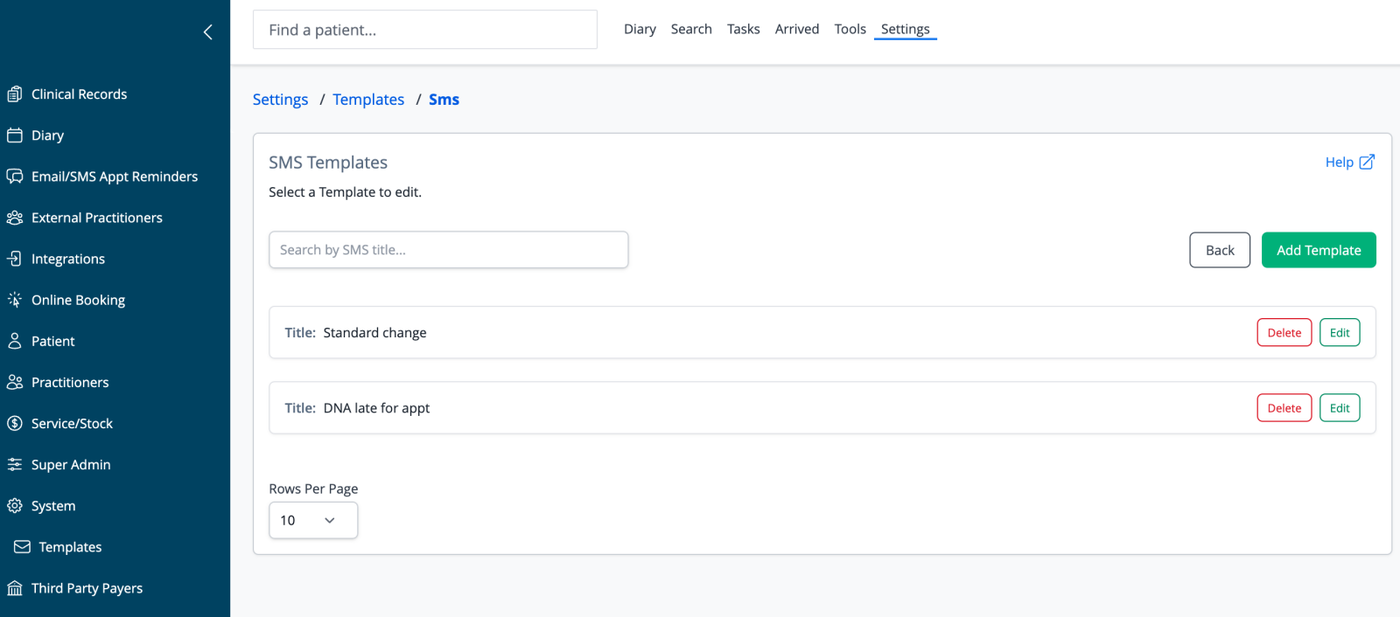
The main screen displays all available SMS templates:
Each template shows its title
Templates are listed alphabetically by title
Action buttons (Edit, Delete) appear to the right of each template
Search functionality helps find specific templates
List Features
Search: Filter templates by title using the search bar
Add Template: Create a new SMS template
Back: Return to the previous screen
Rows Per Page: Control how many templates display per page (default is 10)
Adding a New Template
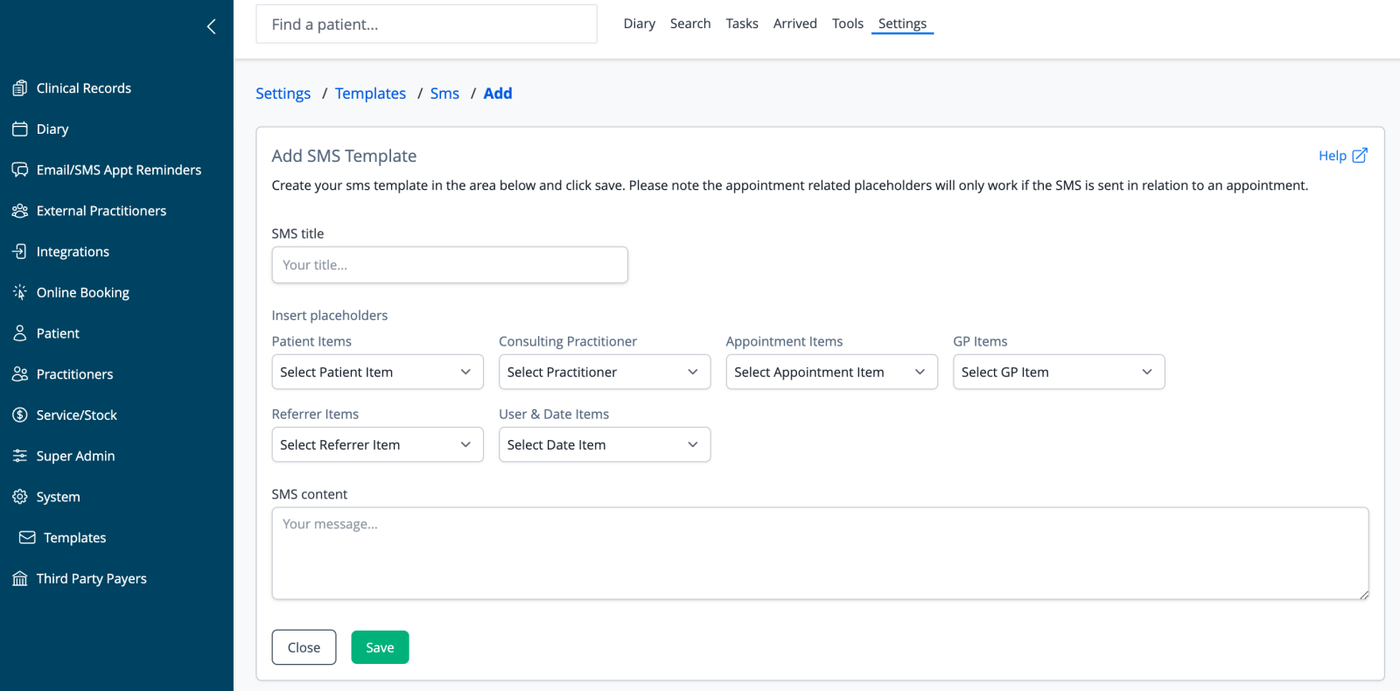
To create a new template, click the "Add Template" button on the SMS Templates list page. The template editor includes:
SMS Title
Enter a descriptive title that identifies the purpose of the SMS
Use clear, specific titles such as "Appointment Reminder" or "DNA late for appt"
Insert Placeholders
The system provides various placeholder categories that dynamically insert specific information:
Patient Items: Name, contact details, etc.
GP Items: Referring doctor information
Referrer Items: Referral details
Third Party Payer Items: Insurance or funding details
User & Date Items: System user and timestamp information
Appointment Items: Date, time, duration, type, etc.
Consulting Practitioner: Provider name and details
Each category has a dropdown menu of available placeholders.
SMS Content
Text area for composing your message
Character limits apply (standard SMS messages are limited to 160 characters)
Important note: Appointment-related placeholders will only work if the SMS is sent in relation to an appointment
Using Placeholders
Placeholders appear in the format %category.field_name% and are automatically replaced with actual data when messages are sent. Examples include:
%patient.first_name%- Patient's first name%appt_item.time%- Appointment time
Note: If the preferred name placeholder is used in a template, and the patient does not have a preferred name saved, the system will automatically insert the first name instead.
Template Actions
Save: Create the new template or update an existing one
Close: Return to templates list without saving changes
Editing an Existing Template
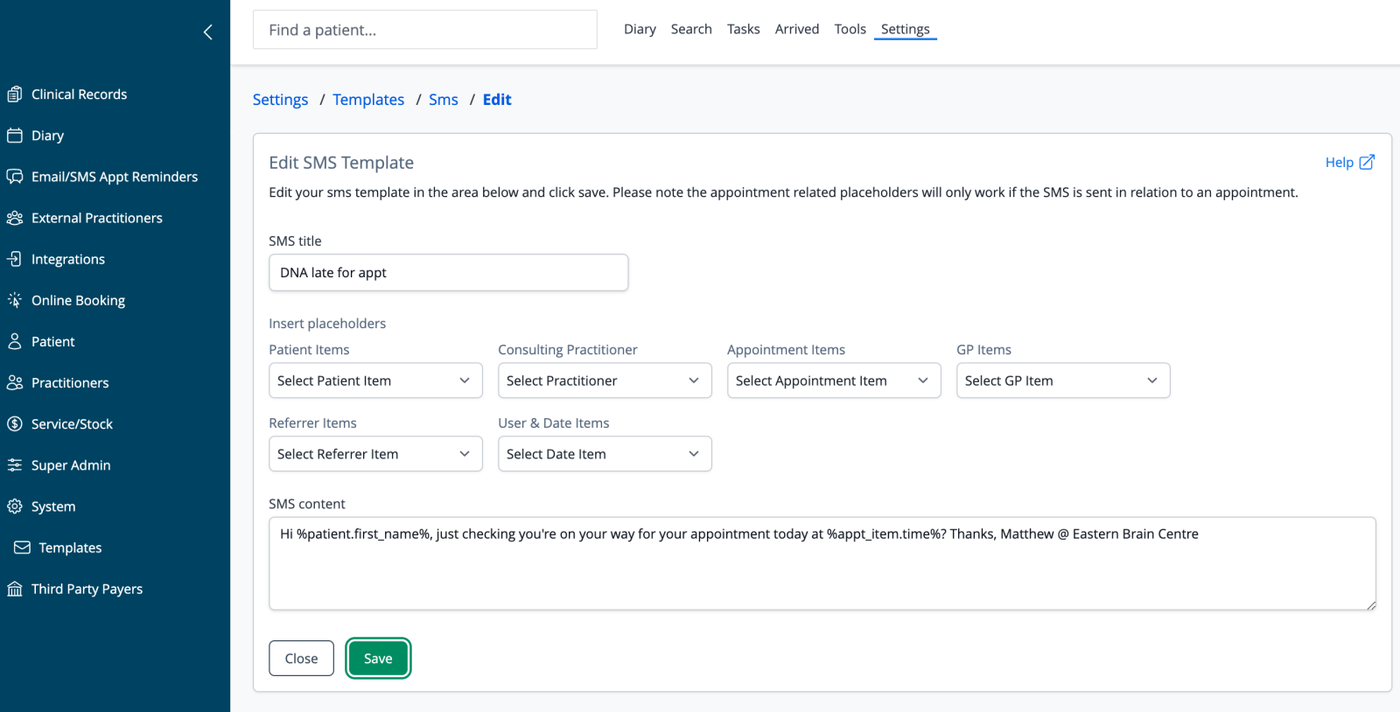
To modify a template, click the "Edit" button next to its title. The editing form includes:
SMS Title
Update the template title as needed
SMS Content
Modify the message text
Add or remove placeholders as needed
Keep an eye on character count for SMS length
Common Template Uses
DNA (Did Not Attend) Follow-ups: Check in with patients who missed appointments
Appointment Changes: Notify patients of schedule modifications
Brief Patient Instructions: Send pre-appointment preparation instructions
Standard Responses: Create consistent replies to common inquiries
Bulk SMS messages: Templates can be used in the Bulk SMS tool
Best Practices
Use placeholders to personalize messages
Test templates before implementing them
Be mindful of privacy and confidentiality in text content
Create templates for different scenarios (reminders, confirmations, follow-ups)
Example Template
The following example shows a typical appointment reminder:
Hi %patient.first_name%, just checking you're on your way for your appointment today at %appt_item.time%? Thanks, Matthew @ Eastern Brain CentreNavigation
Close: Return to templates list without saving changes
Save: Update and save template changes
Help: Access additional information about SMS templates