
Once your practice is connected to Stripe, you can save card details for patients directly from their record. Saved cards can then be used to process payments without the patient needing to be present or re-enter their details.
What You'll Need
- Stripe connected for your practice (see: Connecting Your Stripe Account)
- Card details provided by the patient, with their consent to store them for future charges
Finding a Patient's Payment Methods
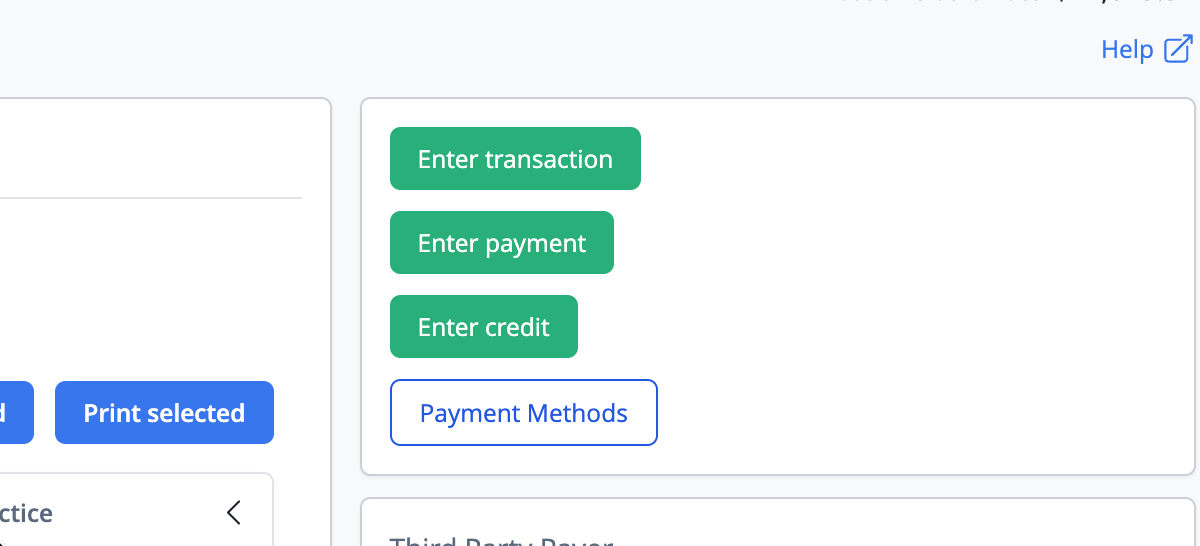
1. Open the patient's Account screen.
2. Click the Payment Methods button.
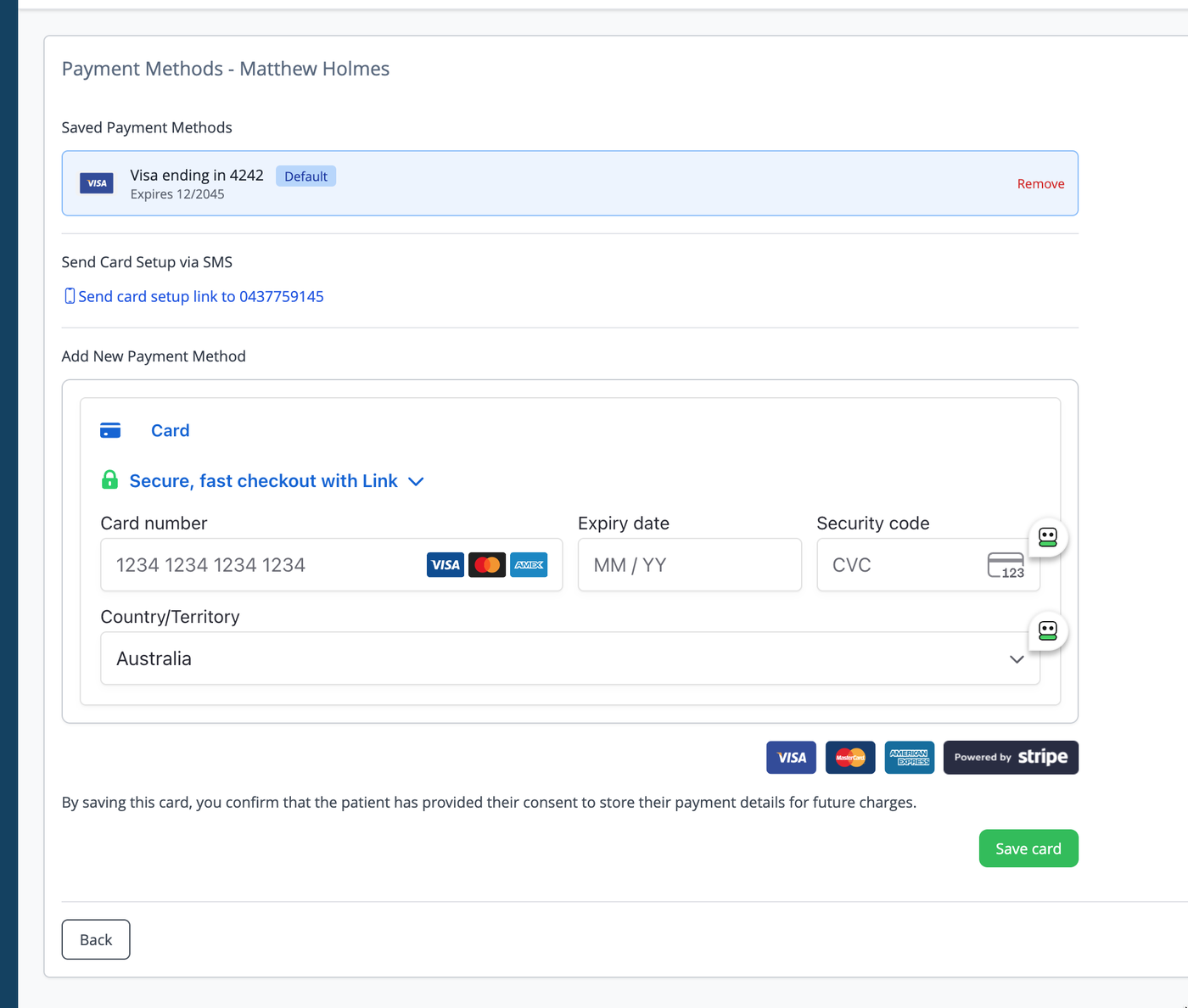
The page displays all currently saved payment methods for that patient, along with options to set a default or remove a card. If no cards have been saved yet, you will see a prompt to add one.
Note: If you see a warning that Stripe is not connected, go to Settings > Integrations > Stripe and complete the connection before returning to this page.
Adding a New Card
There are two ways to add a card for a patient. The preferred approach is to send the patient a secure link via SMS so they can enter their own details — this keeps card handling entirely with the patient and reduces front desk exposure to card data. The front desk entry form is best used when the patient is physically present and the SMS approach is not practical.
Sending a Card Setup Link via SMS
This is the recommended method. The patient receives a secure link by SMS and enters their card details themselves, directly with Stripe.
Requirements: the patient must have a mobile number saved in their record.
1. On the Payment Methods page, scroll to the Send Card Setup via SMS section.
2. Click "Send card setup link to [patient's mobile number]".
3. The patient will receive an SMS with a secure link. The link expires after 24 hours.
Once sent, the page will show an amber banner confirming the link is pending.
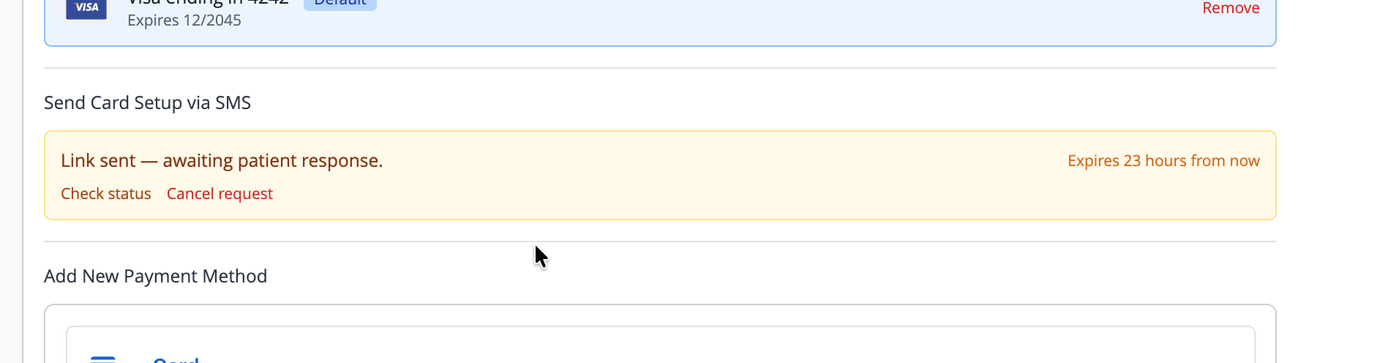
You can monitor the status in two ways:
- The page automatically checks for a response every 30 seconds.
- Click "Check status" at any time to manually check whether the patient has saved their card.
When the patient completes the form, their card will appear in the saved payment methods list automatically and you will see a confirmation message.
To cancel a pending request before it is completed, click "Cancel request" in the amber banner.
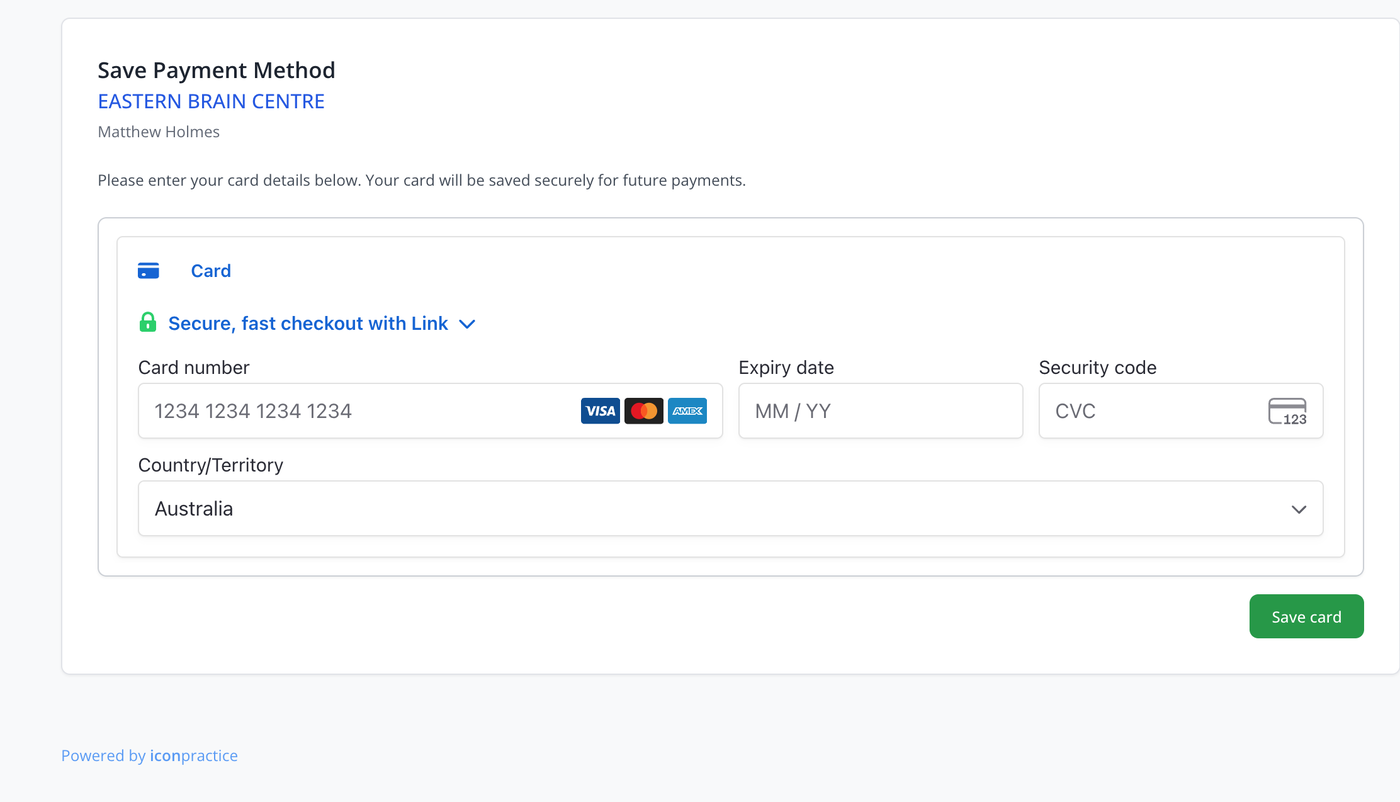
What the patient sees: The patient receives a text message from iconpractice containing a link. When they open it, they will see a simple, branded page asking them to enter their card details. Once submitted, the page confirms the card has been saved and the link can no longer be reused.
Entering a Card at the Front Desk
1. On the Payment Methods page, scroll to the Add New Payment Method section.
2. Enter the card number, expiry date, and CVC in the card entry form.
3. Read the consent statement at the bottom of the form — by saving the card you are confirming the patient has agreed to their payment details being stored for future charges.
4. Click "Save card".
The card will appear in the saved payment methods list. If it is the first card saved for this patient, it will automatically be set as the default.
Note: The card entry form is hosted and secured by Stripe. Card numbers are never transmitted to or stored on iconpractice's servers.
Setting a Default Payment Method
If a patient has more than one card saved, one will be marked as the default. The default card is pre-selected when processing a payment.
To change the default:
1. In the saved payment methods list, find the card you want to set as default.
2. Click "Set Default" next to that card.
The previously default card will be updated automatically.
Removing a Payment Method
1. In the saved payment methods list, find the card you want to remove.
2. Click "Remove".
3. Confirm the prompt.
The card will be deactivated and will no longer appear in the payment methods list or be available for charges. If the removed card was the default, the next available card will automatically become the default.
Note: Removing a card from iconpractice also detaches it from the patient's record in Stripe. This action cannot be undone. If the card needs to be used again in the future, it will need to be re-entered.
Frequently Asked Questions
CAN I ADD MORE THAN ONE CARD FOR A PATIENT?
Yes. There is no limit on the number of cards that can be saved for a patient. Only one card can be set as the default at a time.
WHAT CARD TYPES ARE ACCEPTED?
Visa, Mastercard, and American Express are accepted. The supported card types are displayed at the bottom of the card entry form.
WILL THE PATIENT BE NOTIFIED WHEN I SAVE THEIR CARD?
No. iconpractice does not send a notification to the patient when a card is saved from the front desk. If you would prefer the patient to enter their own card details, you can send them a secure card setup link via SMS instead (see: Sending a Card Setup Link via SMS).
I ENTERED A CARD BUT IT DIDN'T SAVE — WHAT HAPPENED?
If the card entry fails, an error message will appear below the form. Common reasons include an incorrect card number, an expired card, or the card being declined by the issuing bank. Correct the details and try again. If the problem persists, the patient may need to contact their bank or provide an alternative card.
CAN I SEE THE FULL CARD NUMBER OF A SAVED CARD?
No. iconpractice only stores and displays the last four digits of the card number, the card brand, and the expiry date. Full card numbers are handled exclusively by Stripe.