
Before your practice can save patient payment methods or process card payments using Stripe, you need to connect a Stripe account. This is a one-time setup that takes around two to five minutes.
What You’ll Need
- An iconpractice account with admin-level access to Settings > Integrations
- A Stripe account for your practice. If you don't have one, you can create one for free aa part of this process.
STEP 1: OPEN THE STRIPE INTEGRATION PAGE
1. Log in to iconpractice. If you have more than one practice, make sure you have the correct practice selected (visible in the bottom left of the screen).
2. Go to Settings > Integrations > Stripe.
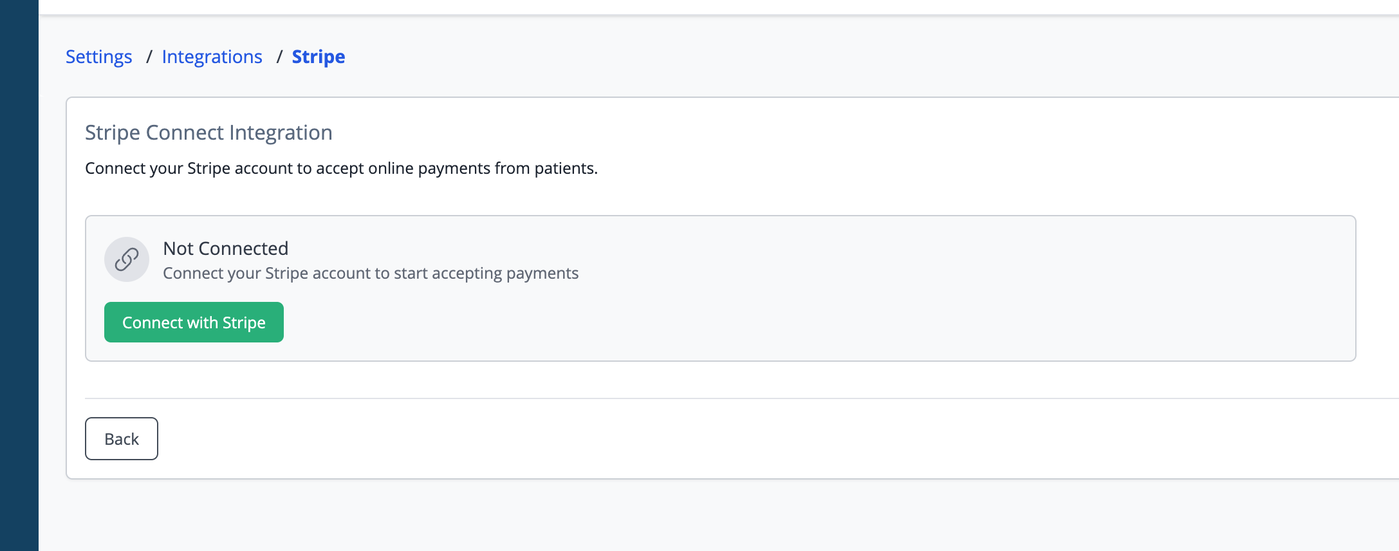
You'll see the Stripe Connect Integration page showing the current connection status for the selected practice.
STEP 2: CONNECT WITH STRIPE
If the practice is not yet connected, you'll see a "Connect with Stripe" button.
1. Click "Connect with Stripe".
2. You'll be taken to Stripe's website. If you're not already logged in to Stripe, do so now. If you do not have a Stripe account, you can create one from this screen. For new accounts, Stripe will take you through a “Know Your Customer” process, which is a legal requirement like opening a bank account.
3. Stripe will ask you to authorise iconpractice to access your account. Review the permissions and click "Authorise access". Note: An existing Stripe account can only be fully controlled by one platform at any given time.
4. You'll be redirected back to iconpractice automatically.
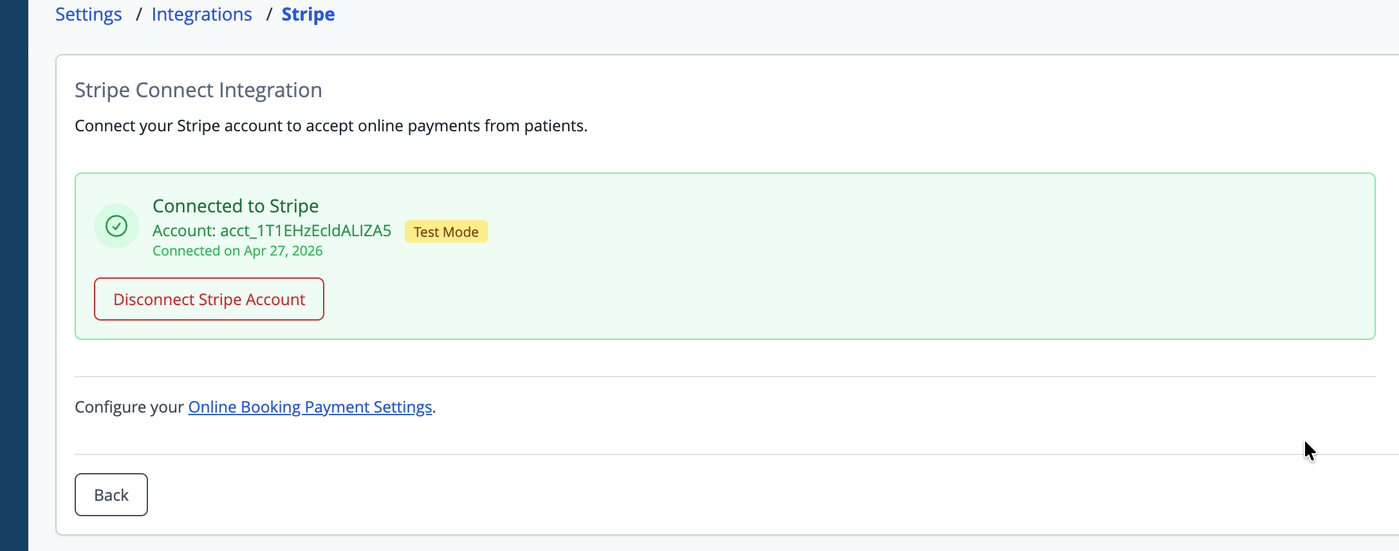
If the connection is successful, the page will show a green "Connected to Stripe" banner displaying your Stripe account ID and the date the connection was made.
Note - Test Mode vs Live Mode:
If your Stripe account is in test mode, you'll see a yellow "Test Mode" badge. Test mode is useful during setup but will not process real payments. Switch your Stripe account to live mode in the Stripe Dashboard when you're ready to go live.
STEP 3: VERIFY THE CONNECTION
Once connected, check the following:
- The status banner is green and shows "Connected to Stripe"
- The account ID displayed matches the one in your Stripe Dashboard
- The mode badge (Live or Test) matches your expectations
If you see an amber "Stripe Account Restricted" banner instead of green, Stripe has flagged your account for outstanding requirements (such as identity verification or business details). Open your Stripe Dashboard at dashboard.stripe.com and complete any outstanding steps, then return to this page.
Using an Existing Stripe Connection for a Second Practice
If your organisation has multiple practices in iconpractice and you have already connected Stripe for one of them, you can reuse that same Stripe account for additional practices — without going through the OAuth flow again.
1. Switch to the practice you want to connect.
2. Go to Settings > Integrations > Stripe.
3. Under the "Or use an existing connection from another practice" section, select the practice whose Stripe connection you want to copy.
4. Click "Use This Connection".
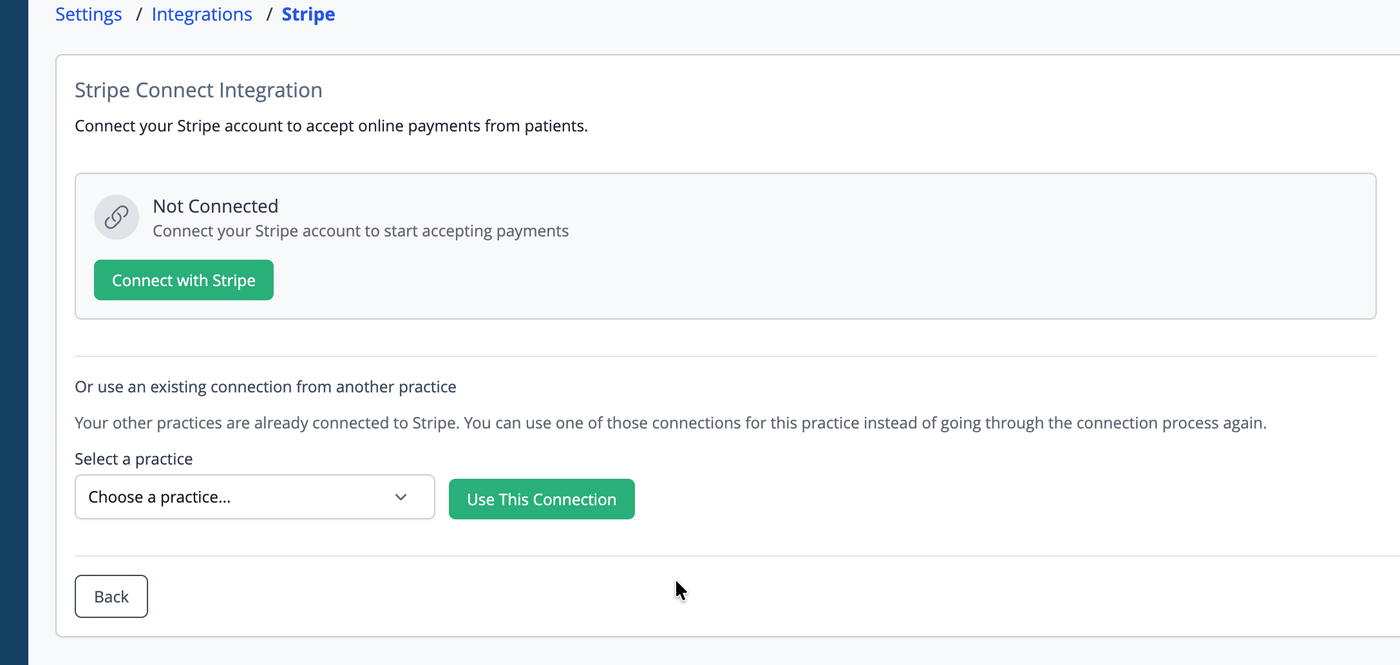
The practice will immediately show as connected using the selected Stripe account.
Note: All practices sharing the same Stripe account will process payments through that single Stripe account. This is appropriate for practices within the same business entity. If your practices are separate legal entities, each should connect its own Stripe account.
Disconnecting Your Stripe Account
To remove the Stripe connection for a practice:
1. Go to Settings > Integrations > Stripe.
2. Click "Disconnect Stripe Account".
3. Confirm the prompt.
Important: Disconnecting Stripe revokes access at the Stripe level, which affects all practices in your organisation that share this Stripe account — not just the current practice. All saved patient payment methods linked to this Stripe account across all affected practices will be deactivated. If you reconnect using a different Stripe account in the future, previously saved payment methods will not carry across.
Disconnecting does not delete saved payment method records from iconpractice — those records remain for audit purposes — but they will be inactive.
FREQUENTLY ASKED QUESTIONS
Do I need a separate Stripe account for each practice?
No. If your practices share the same business entity and bank account, you can use a single Stripe account for all of them using the "use existing connection" feature described above. If your practices are separate businesses, each should have its own Stripe account.
I already use Stripe for something else. Will this conflict?
Possibly. When you connect your Stripe account to iconpractice via Stripe Connect, you are granting iconpractice certain permissions to access and act on your Stripe account. During the OAuth connection flow, Stripe will show you exactly what access is being requested before you authorise it. If you use Stripe for other purposes — such as a separate e-commerce store or another payment platform — we recommend reviewing those permissions carefully to understand the level of access iconpractice will have. For a full explanation of what these permissions mean, see Stripe's support article on security, permissions, and access levels when connecting to a third-party platform. If in doubt it may be best to create a separate Stripe account.
I don't have edit permissions for Integrations — I can only see the status.
The "Connect with Stripe" and "Disconnect" buttons require the Integrations: Edit permission. Contact your practice administrator to grant you this permission, or ask them to complete the connection on your behalf.
The connection failed and I was sent back to iconpractice with an error.
This usually means the Stripe OAuth flow was cancelled or timed out. Try clicking "Connect with Stripe" again. If the error persists, ensure you are logged in to the correct Stripe account and that your browser is not blocking redirects from iconpractice.
What's next after connecting?
Once your Stripe account is connected, you can add and manage patient payment methods (including sending a card setup link to a patient via SMS), and charge a patient's saved card.