
Overview
This article explains how to get a list of patients for follow-up, recalls, newsletters or mailing lists. Common examples are a list of new patients (NPs) who joined since a given date, the email addresses of patients who have attended recently, patients who have dropped off care or lapsed, and patients who cancelled or did not attend (DNA) and have not rebooked.
You never need to go through patient files one by one to do this. There are two places to get these lists, both under Tools. The Exports page gives you a CSV file of patient details filtered by when they attended, when they joined, address, tags, practice and practitioner. The Patient reports page (under Tools, then Reports) gives you ready-made follow-up lists such as Cancellations and DNAs and Patients Not Rebooked.
Every list can be downloaded as a CSV file, which opens in Excel or any spreadsheet program. You can delete any columns you do not need, for example keeping only first name, last name and email. Most lists can also be saved to memory, so you can send them a message straight away using the Bulk SMS tool.
New Patients Since a Given Date
To get a list of new patients, go to Tools, then Exports. Set Filter by date joined to Since and choose the Date joined from date, for example 21/01/2026. Leave “Filter by when last attended” set to Anytime unless you also want to limit the list by attendance.
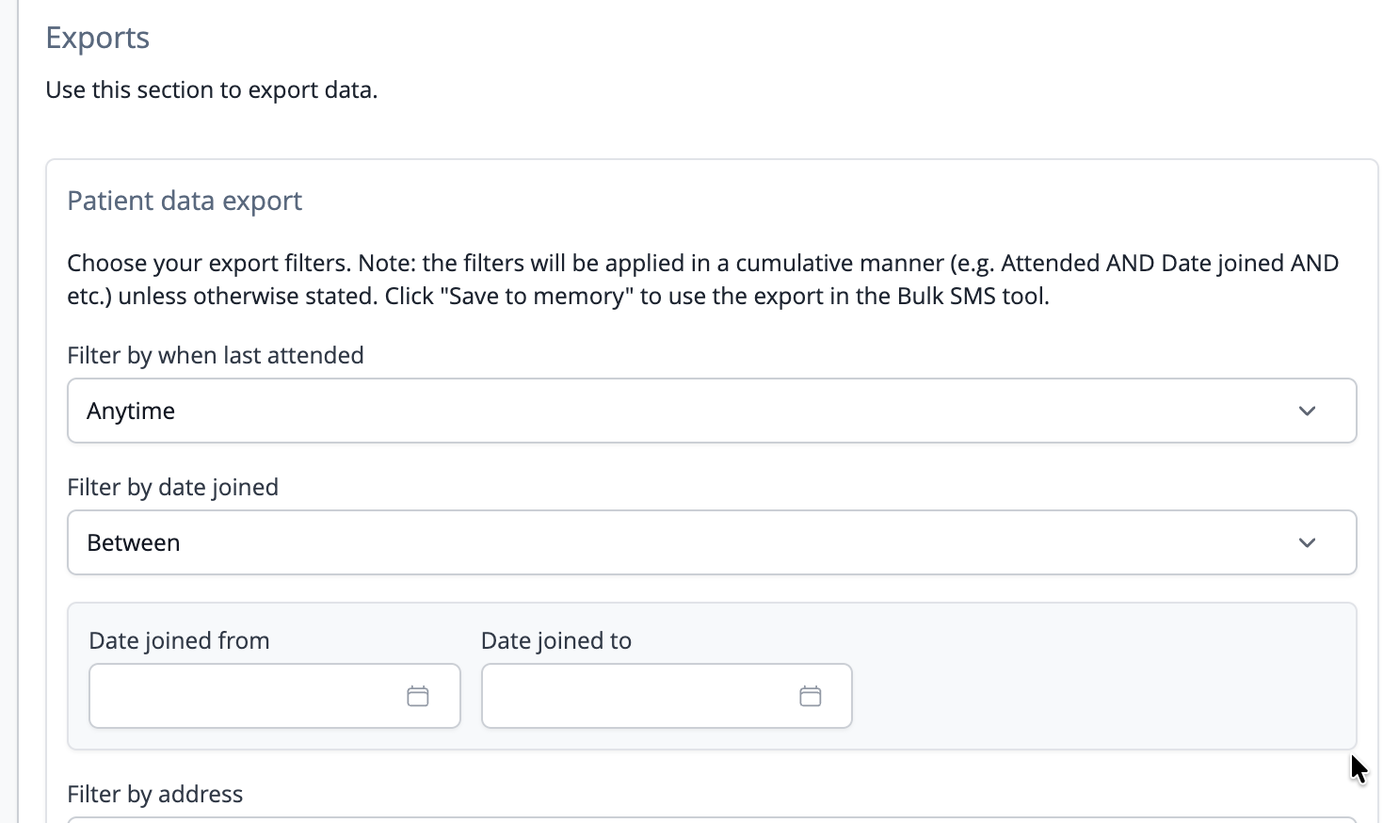
Click Export patients. The export appears in the Exports for Download list at the bottom of the page, and you can click Download once its status shows as completed.
The CSV file contains each patient's details, including their name, mobile and email address, so this is also how you build an email list of new patients. Use Between instead of Since if you want new patients who joined within a particular period, for example a single month.
Email or Contact Lists of Patients Who Have Attended
To get the contact details of everyone who has attended since a given date, go to Tools, then Exports. Set Filter by when last attended to Since and choose the Attended from date, then click Export patients.
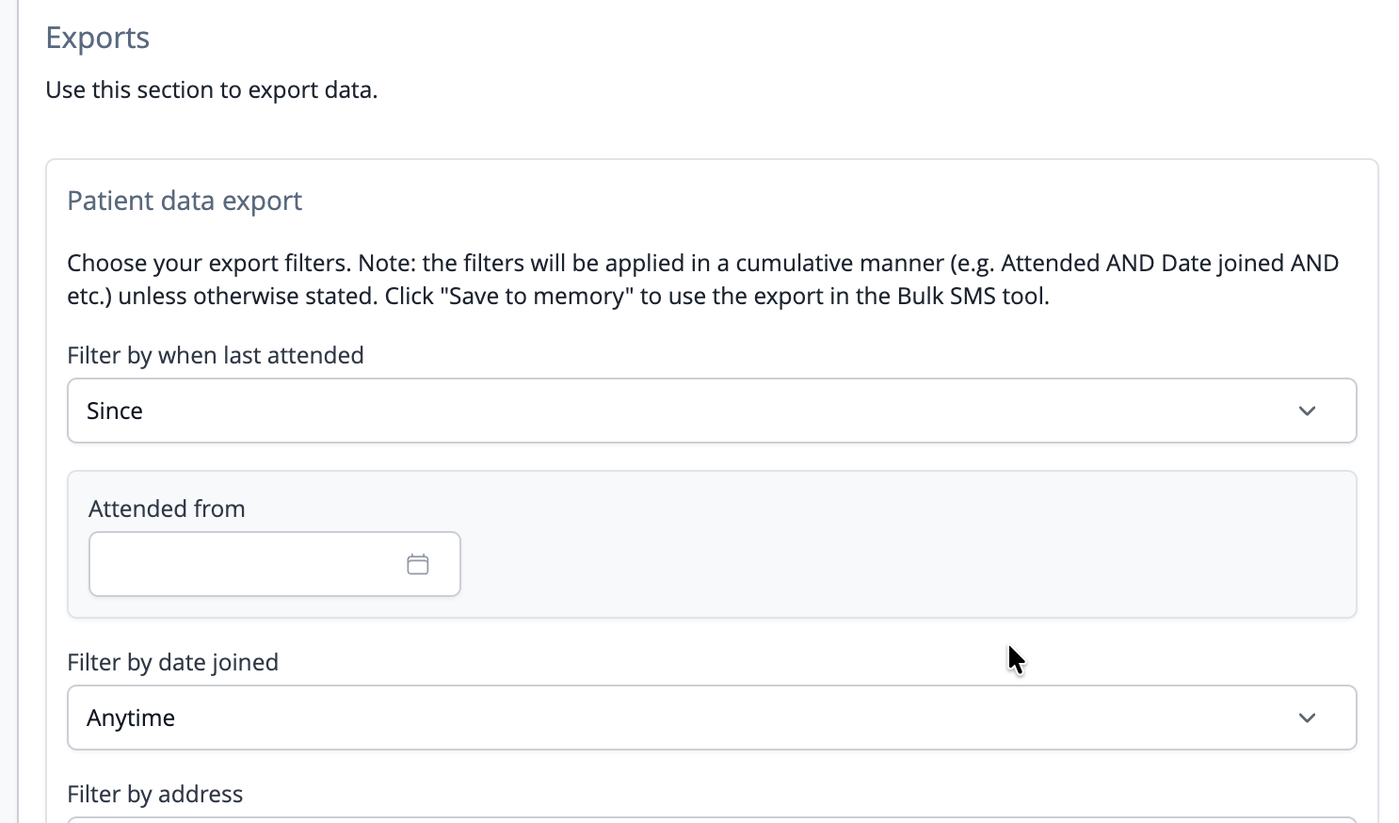
You can narrow the list further with the other filters. They are combined, so a patient must match all of them. For example, setting both Filter by when last attended and Filter by date joined to Since 21/01/2026 gives you new patients who joined and attended since that date. Filter by practitioner seen limits the list to patients seen by one practitioner, and Filter by Tag limits it to patients with particular tags.
Patients Who Have Dropped Off Care
A patient who has dropped off care is one who attended during a period but has no appointment booked after it. There are two ways to find them.
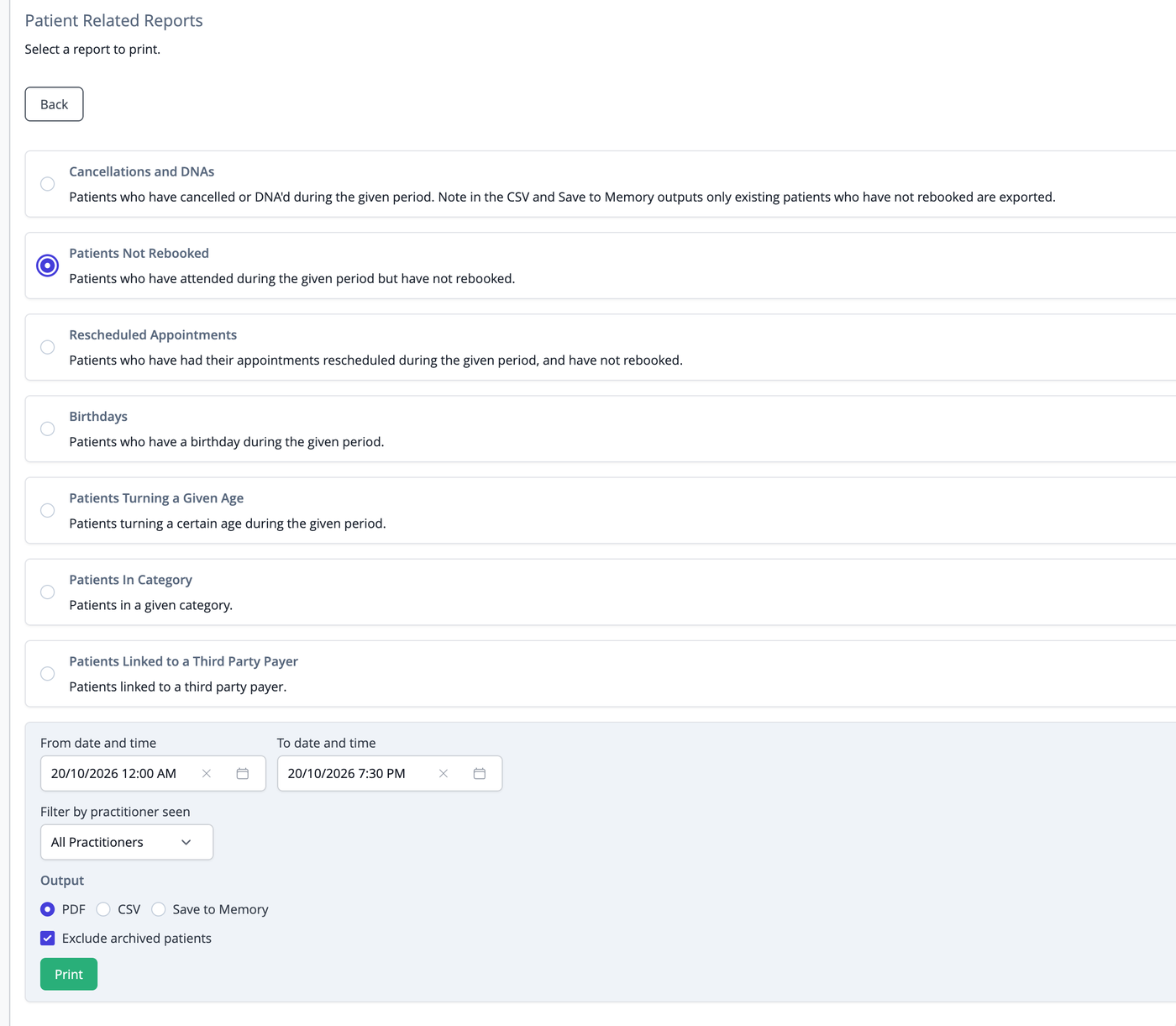
The first is the Patients Not Rebooked report. Go to Tools, then Reports, then Patient reports. Select Patients Not Rebooked, choose the From and To dates for the period you are interested in, and choose CSV, PDF or Save to Memory as the output. The report lists patients who attended during that period and have no appointment booked after the To date. The CSV includes each patient's last appointment, phone numbers, email address and account balance.
The second is the Exports page, which gives you the full set of patient details and lets you combine attendance with the other filters. Set Filter by when last attended to Between and choose the Attended from and Attended to dates. A checkbox called Include people with appointments booked after these dates then appears. It is ticked by default, which means everyone who attended in that period is included, even if they have been back since. Untick it to leave out anyone who has a later appointment, so the list only contains patients who have not returned.
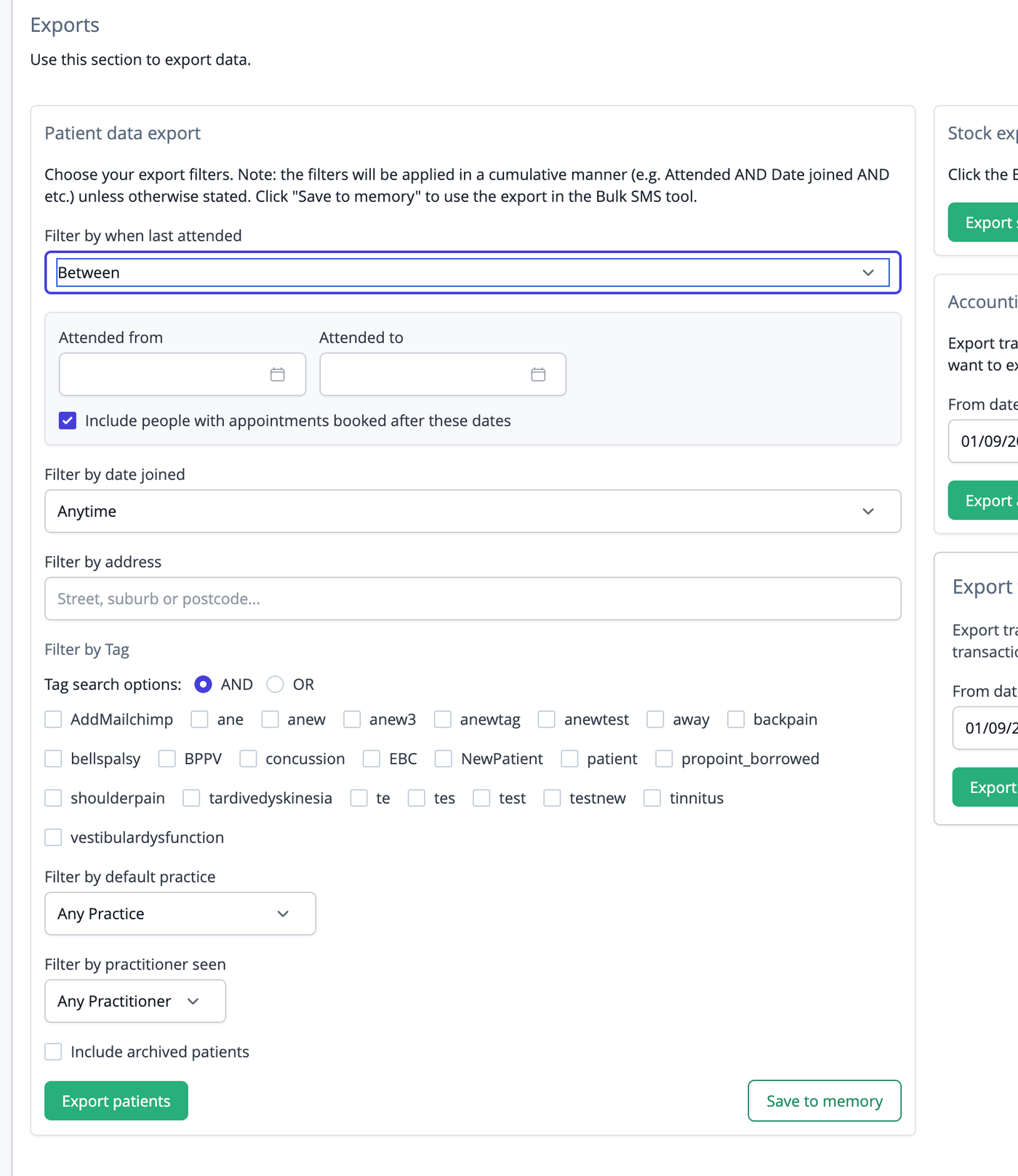
The checkbox only appears when Filter by when last attended is set to Before or Between, because it needs an end date to compare against. If you want patients seen since a date who have not rebooked, choose Between and set the Attended to date to today.
To see how many patients are dropping off, run the Patients Not Rebooked report for a period such as last month, and compare the number of patients it lists with the same report for earlier months.
Patients Who Cancelled or Did Not Attend
Go to Tools, then Reports, then Patient reports, and select Cancellations and DNAs. Choose the From and To dates and the output format.
The PDF version lists every cancellation and DNA in the period. The CSV and Save to Memory versions only include patients who have not rebooked since, because those are the patients who need following up. The CSV includes each patient's mobile, email address, the appointment date, whether it was a cancellation or a DNA, and any comment.
Downloading and Trimming the CSV File
CSV reports and exports are created in the background, so they take a moment to appear. On the Exports page they are listed under Exports for Download, and on the Patient reports page under CSV Reports available for download. Click Download when the status shows as completed.
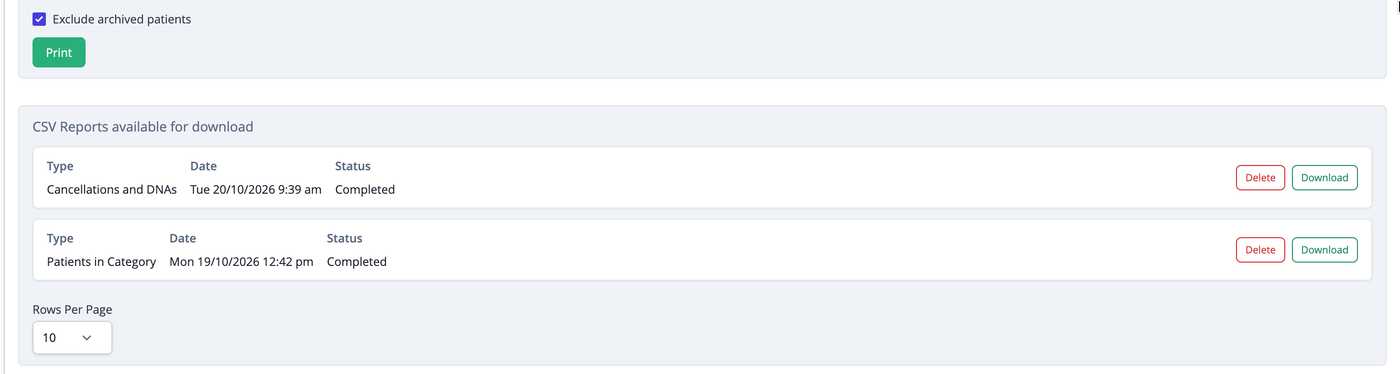
Open the file in Excel or another spreadsheet program. The export contains many columns, so delete the ones you do not need before using the list. If you are importing email addresses into a mailing service, keep only the name and email columns and delete any rows with an empty email address.
Common Questions
Can I get a list of email addresses for my new patients? Yes. Use Tools, then Exports, set Filter by date joined to Since with your start date, and click Export patients. The CSV includes each patient's email address.
Is there a way to do this without going through each patient's file? Yes. Both the Exports page and the Patient reports page build the list for you and give you a CSV file containing everyone's contact details at once.
Why can't I see the Include people with appointments booked after these dates checkbox? It only appears when Filter by when last attended is set to Before or Between. Choose Between and set the Attended to date to today if you want everyone seen since a date.
Why does my Cancellations and DNAs CSV have fewer patients than the PDF? The CSV and Save to Memory versions leave out patients who have already rebooked, because they no longer need following up. The PDF shows every cancellation and DNA in the period.
Can I send these patients an SMS instead of downloading a file? Yes. Click Save to memory on the Exports page, or choose Save to Memory as the output on the Patient reports page, then open the Bulk SMS tool to message the saved list.
How do I find out how many patients are dropping off care? Run the Patients Not Rebooked report for a period and look at how many patients it lists. Running it for several months in a row shows whether the number is going up or down.