
Overview
Tyro Online lets you send a patient's invoice line items to Tyro for processing as a Medicare, DVA, private health insurance, or other funded claim, directly from the payment screen. This article walks through sending a payment to Tyro Online from the Enter Transaction window, from enabling the integration through to completing the claim.
Enabling Tyro Online
Before Tyro Online can be used, it must be switched on for the practice. Go to Settings, then Integrations, then Tyro Online and Terminal. Enter the Tyro Online API key supplied by Tyro and click Save Details. Once a key is saved, the Send to Tyro Online button becomes available on the payment screen. If the API key is removed and the settings saved, the option disappears again. More details here.
Starting a Tyro Online Payment
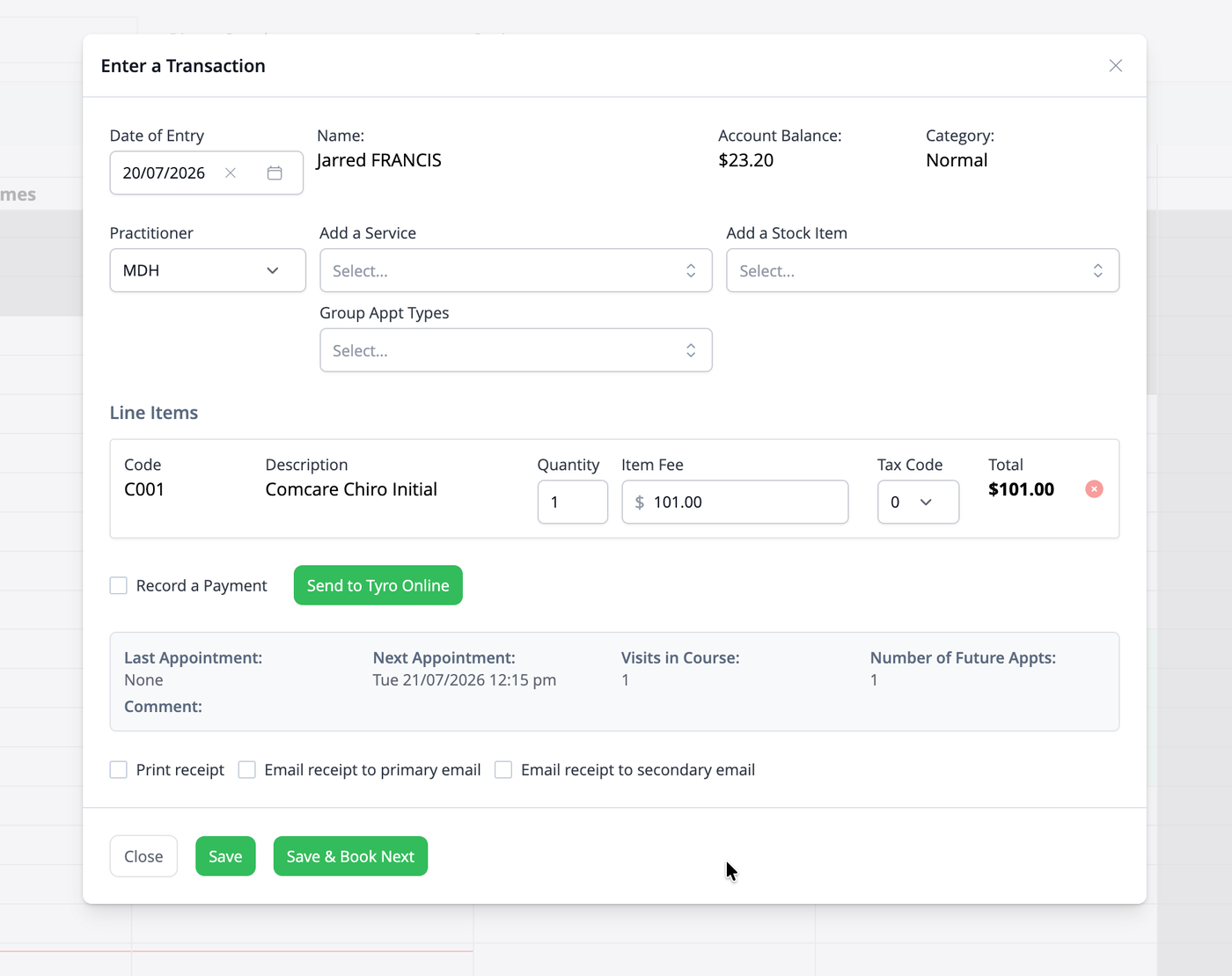
Start entering a transaction as usual. Where you would normally record a payment, a Send to Tyro Online button appears alongside the Record a Payment option. Click this button to move to the Tyro Online screen rather than entering the payment manually.
Selecting the Services to Claim
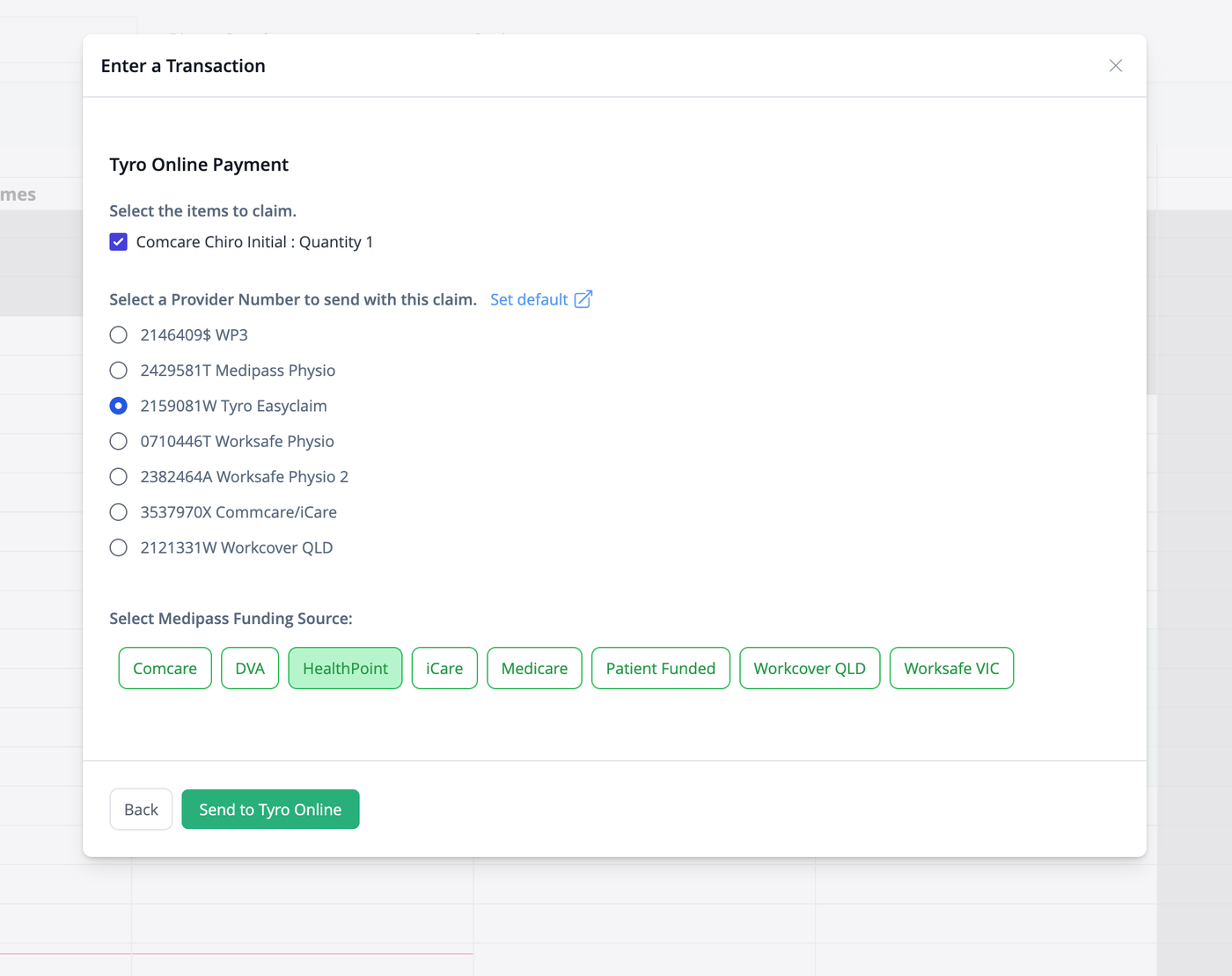
The Tyro Online screen lists every line item on the invoice with a checkbox next to it. Tick each service you want included in this claim. You do not have to send every line item in one claim — if some items are not claimable (for example, a retail product sold alongside a Medicare service), leave them unticked and process them as a separate, ordinary payment. Medicare and DVA claims cannot include non-claimable items in the same transaction, so the system will stop you if you try to mix them.
Selecting a Provider Number
Underneath the service list, choose the provider number that should be attached to this claim. Any provider numbers already set up for the treating practitioner are listed as radio button options — select the correct one.
If no provider number is listed, or you want to avoid selecting one every time, click the Set default link next to this section. This opens the practitioner's settings page in a new tab, where a default provider number can be added against their profile so it is available here going forward.
Selecting the Payment Type
Next, choose who is funding the claim. The options are:
Comcare, for claims funded through the Comcare workers compensation scheme.
DVA, for claims funded by the Department of Veterans' Affairs.
HealthPoint, for private health insurance claims processed through HealthPoint.
iCare, for claims funded through the NSW iCare workers compensation scheme.
Medicare, for Medicare-funded claims. Selecting Medicare reveals a Bulk Billed toggle — switch this on if the service is being bulk billed rather than paid upfront by the patient. When bulk billing is enabled, double-check that the item values do not exceed the Medicare rebate and that only Medicare-claimable items are ticked, since bulk billed claims are not separately checked by the system.
Patient Funded, where the patient is paying for the service themselves through the Tyro terminal or online payment, rather than through a third-party funder.
Workcover QLD, for claims funded through the Queensland workers compensation scheme.
Worksafe VIC, for claims funded through the Victorian workers compensation scheme.
For Comcare, DVA, iCare, Workcover QLD and Worksafe VIC claims, the patient must already have a reference number recorded for that funder on their profile. If one is missing, the system will stop you and ask you to add it to the patient's Details page before continuing.
Sending to Tyro
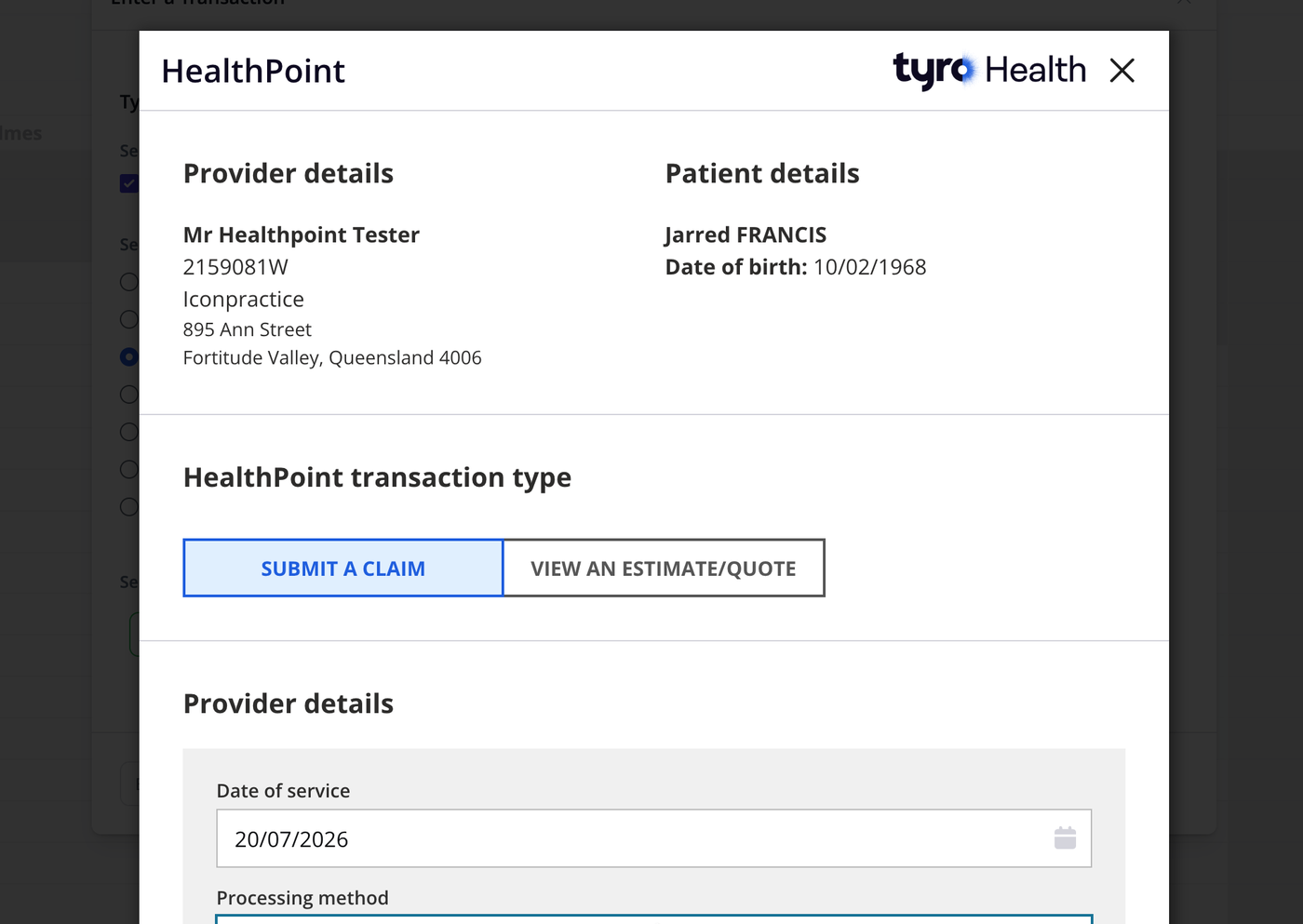
Once the services, provider number and payment type are selected, click Send to Tyro Online at the bottom of the screen. The Tyro Online payment window will open. Follow the prompts within the Tyro window to complete the claim — this may include entering or confirming patient details, selecting a payment method, and processing the transaction with the patient present.
After Processing
Once Tyro reports that the transaction was processed successfully, the Tyro window closes and you are returned to the Enter Transaction screen, now showing the payment as completed. Check the details are correct and click Save to finish recording the transaction against the invoice.
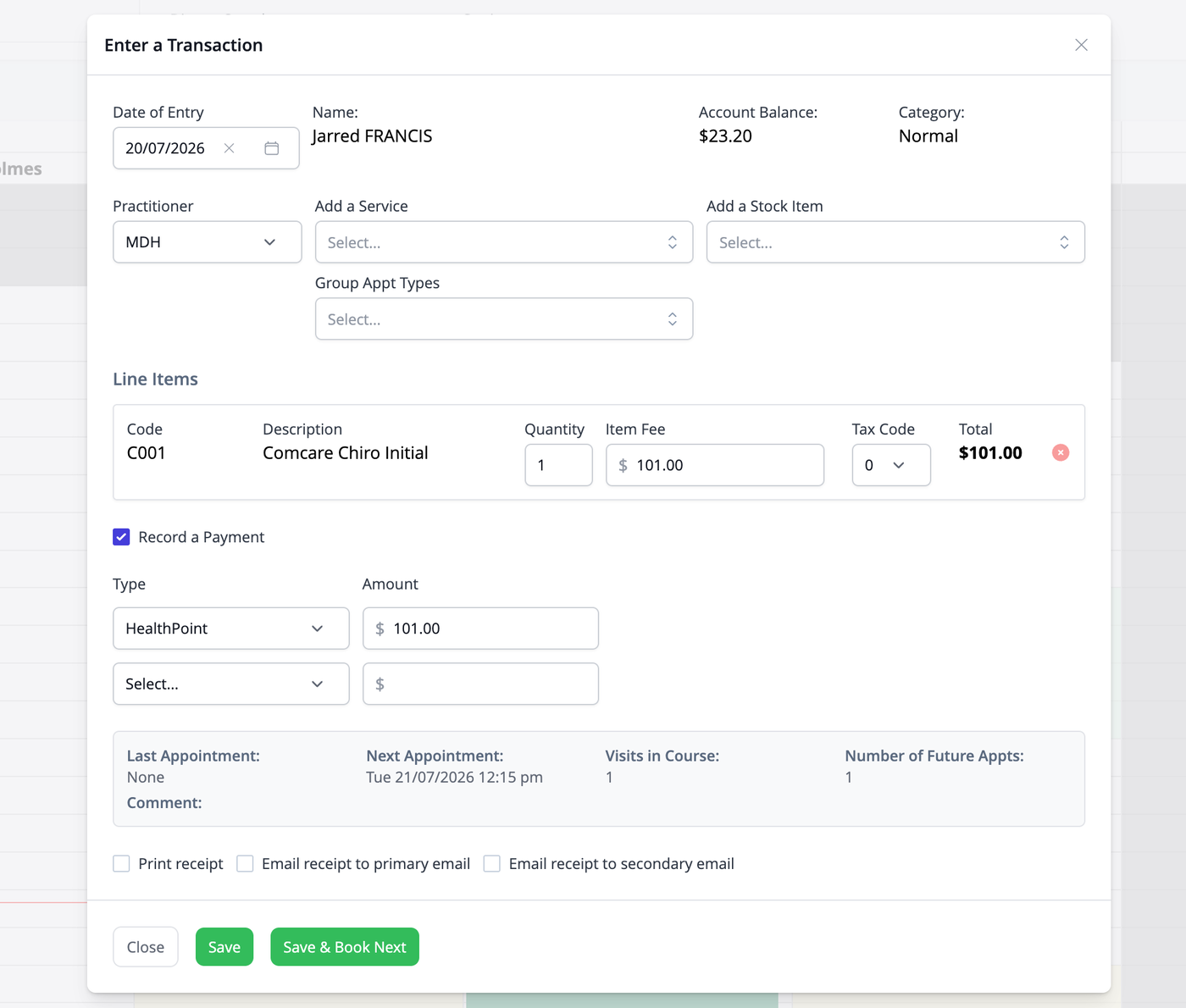
If you close or cancel the Enter Transaction window at this point instead of clicking Save, the payment has still been taken through Tyro even though it has not been recorded in the system. In this situation you will need to log in to the Tyro Online portal separately and cancel or refund the transaction there.
If you cancel from within the Tyro Online window itself before the transaction is processed, no payment is taken and the system automatically discards the in-progress invoice, so no further action is needed.
Common Questions
Why can't I select Medicare and a retail item in the same claim? Government legislation does not allow non-claimable items to be included in a Medicare or DVA claim processed through Tyro. Process the non-claimable items as a separate, ordinary transaction.
Why is the Send to Tyro Online button missing? Tyro Online has not been enabled for the practice. Go to Settings, Integrations, Tyro Online and Terminal, and confirm an API key has been entered and saved.
Why can't I select a provider number? The treating practitioner has no provider numbers set up. Use the Set default link on the Tyro Online screen to open the practitioner's settings and add one.
What happens if the patient's reference number is missing? For Comcare, DVA, iCare, Workcover QLD and Worksafe VIC claims, you will be prompted to add the patient's reference number for that funder on their Details page before you can send the claim to Tyro.