
Overview
AI Scribe is the clinical records transcription feature built into iconpractice. It lets clinicians record a consultation and have the audio converted to structured clinical notes automatically. Before any staff member can use AI Scribe, a Super Admin must enable it on their user account and select an AI plan.
This article explains how to activate AI Scribe for a user, what each setting controls, and what happens to billing when access is turned on or off.
To reach these settings, go to Settings, then Super Admin, then Users, and open the edit page for the user whose access you want to configure.
Enabling AI Scribe
In the upper section of the user edit page you will find an indigo-coloured panel labelled Enable AI transcription. Use the toggle on this panel to turn AI Scribe on or off for that user.
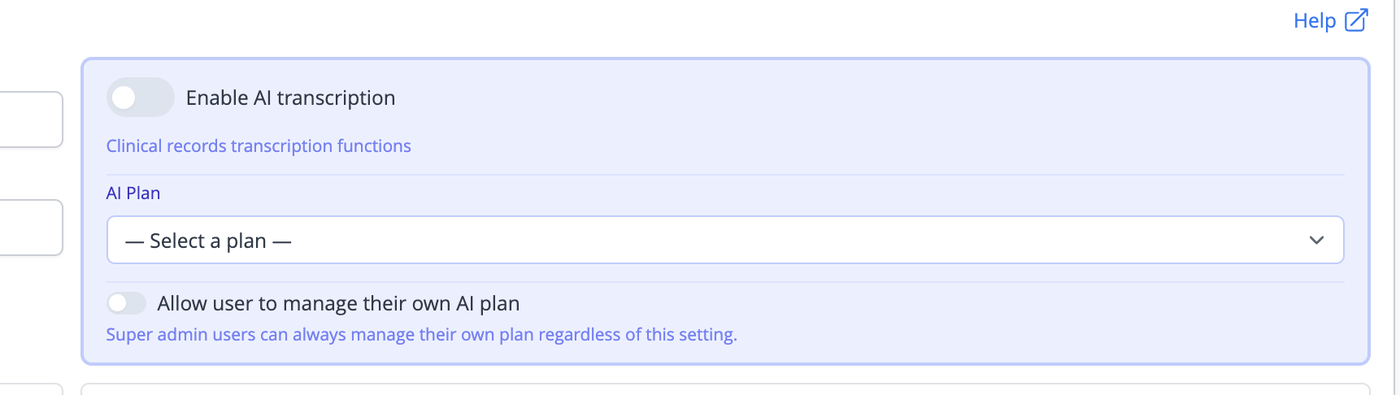
When you turn the toggle on, a confirmation prompt will appear asking you to confirm that you want to activate AI functions for this user. Confirming will trigger an immediate pro-rata charge to your payment method covering the days remaining in the current billing cycle. From the start of the next billing cycle, the user will be billed at the full monthly rate for their selected plan. If you cancel the confirmation, the toggle is reversed and no change is made.
A payment method must be on file for your account before AI Scribe can be activated. If no card is recorded, you will see an error message and the activation will not proceed. You can add a payment method from Settings, Super Admin, Subscription and Billing.
AI Plan
Below the activation toggle is an AI Plan selector. This determines the monthly allowance of audio recording minutes included in the user's subscription and the monthly fee charged.
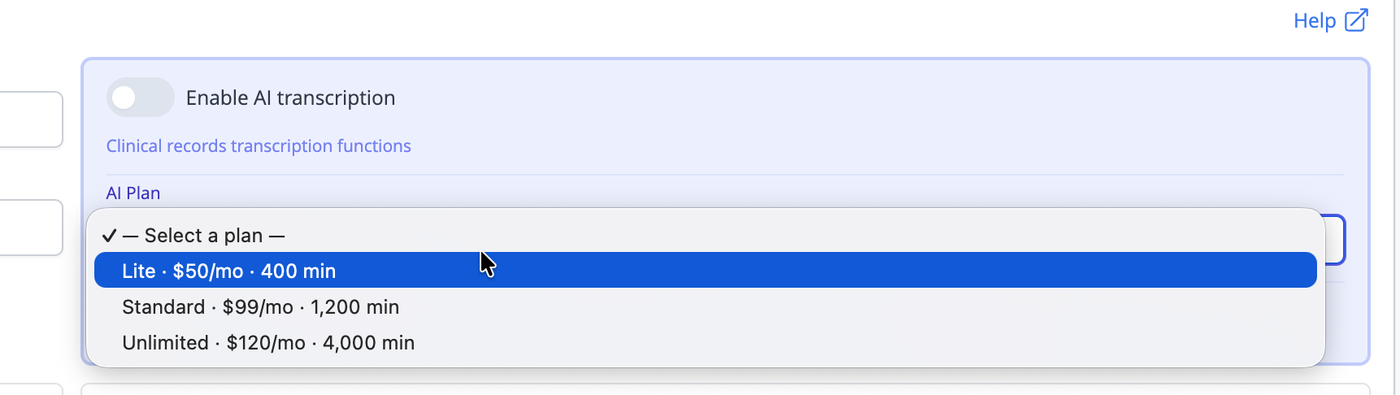
Each plan in the dropdown shows the plan name, the monthly fee, and the number of included recording minutes. You should select the appropriate plan before enabling AI Scribe. If you activate AI Scribe without selecting a plan, the system will prompt you to choose one.
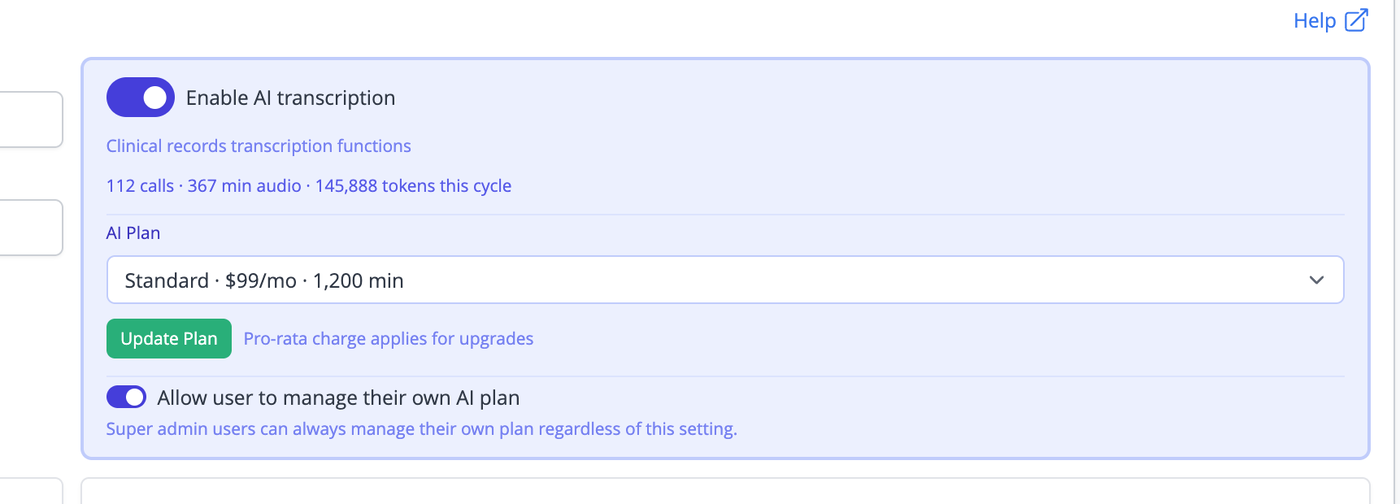
If a user is already active and you want to change their plan, select the new plan from the dropdown and click Update Plan. A confirmation prompt will appear warning that a pro-rata charge will apply if you are upgrading to a higher plan. This charge is processed immediately. Downgrading to a lower plan takes effect at the start of the next billing cycle.
The panel also shows the user's current cycle usage — the number of AI calls made, the total minutes of audio recorded, and the number of AI tokens used — so you can see how they are tracking against their plan allowance before deciding whether to change it. This article describes how to view AI Usage across your account.
Allowing Users to Manage Their Own Plan
There is a secondary toggle in the AI panel labelled Allow user to manage their own AI plan. When this is enabled, the user can upgrade their own plan from within their account without needing a Super Admin to do it on their behalf.
Users who have Super Admin permissions can always manage their own plan, regardless of how this toggle is set. The toggle only affects non-admin users.
Disabling AI Scribe
To remove AI Scribe access for a user, turn the Enable AI transcription toggle off. A message will appear confirming that AI functions will be disabled at the start of the next billing cycle.
The user will retain access to AI Scribe until the end of the current billing cycle. They will not be charged at the start of the next cycle. This grace period means that disabling access mid-cycle does not result in a partial refund but also does not cut the user off immediately.
Common Questions
What happens if the payment fails when I activate AI Scribe?
If the pro-rata charge at activation is declined, the user's AI access is not enabled. You will see an error message. Check that the payment method on file is valid from Settings, Super Admin, Subscription and Billing, then try activating again.
Can I activate AI Scribe for multiple users at once?
No. AI Scribe must be enabled individually for each user. Each user has their own plan selection and billing.
What is the difference between AI Scribe and AI letter generation?
Both features are part of AI Functions and are enabled through the same AI Scribe activation toggle. Turning on AI Scribe gives the user access to both clinical records transcription on the Records page and AI-assisted letter generation. There is no separate toggle for letters.
What counts towards the included minutes?
Each time a user records a consultation using AI Scribe, the duration of that recording counts against their monthly audio allowance. Usage is tracked per user per billing cycle and is visible on the AI Usage page under Settings > Super Admin.