
Once a patient has a saved payment method, you can charge it directly from the transaction entry screen without the patient needing to be present or provide their card details again.
What You'll Need
- Stripe connected for your practice (see: Connecting Your Stripe Account)
- At least one saved payment method on the patient's record (see: Adding and Managing Patient Payment Methods)
- An open transaction with at least one line item entered
Where You Can Charge a Stored Card
Stored cards are available in three places:
- Enter Transaction: charge the patient's card when recording a new transaction. The amount charged is the invoice total.
- Enter Payment: charge the patient's card to pay off an existing outstanding invoice.
- Enter Credit: charge the patient's card to add a credit to their account, which can then be applied against invoices.
Each screen works the same way: a "Charge Stored Card" panel will appear if Stripe is connected and the patient has at least one saved card.
Charging a Card During Transaction Entry
1. Click the patient's appointment and begin entering a transaction as normal.
2. Add your line items. The charge amount will be the invoice total.
3. In the payment section, you will see a "Charge Stored Card" panel listing the patient's saved cards.
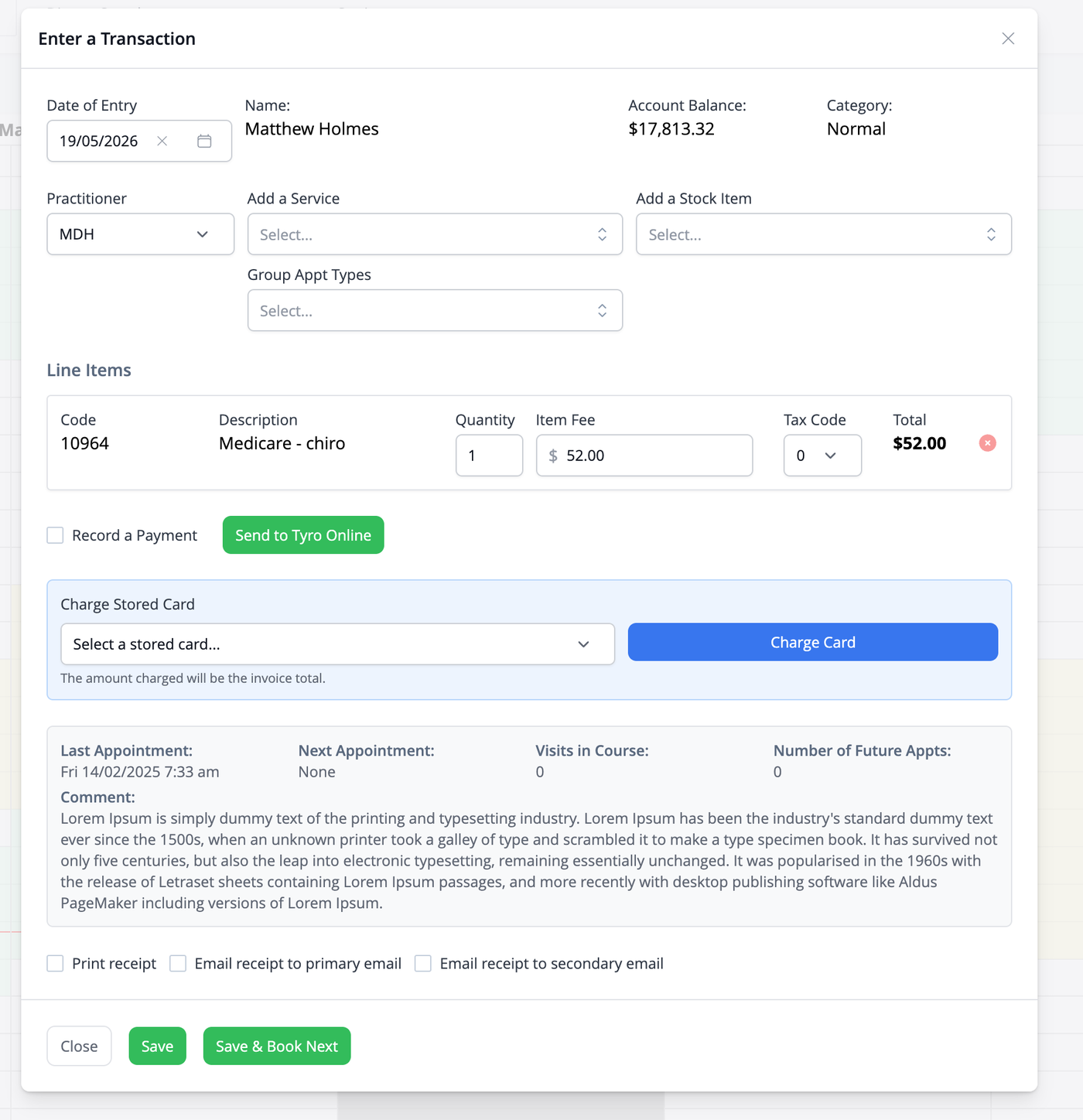
4. Select the card you want to charge from the dropdown. The default card is pre-selected.
5. Click "Charge Card".
iconpractice will process the payment with Stripe. While the charge is being processed, the button will show "Processing..." — do not close the window or navigate away.
If the charge is successful, you will see a confirmation message and the payment will be pre-filled in the form. Click "Save" to complete the process as normal.
Note: When entering transactions, the amount charged is always the invoice total. You cannot charge a partial amount when entering a transaction using a stored card.
Partial Payments Using Stored Cards
The Enter Transaction screen charges the full invoice total in a single Stripe transaction. If you need to split a payment — for example, part by stored card and part by another method — use the following approach:
1. Use Enter Credit to charge the patient's stored card for the partial amount. This adds a credit to their account.
2. When entering the transaction, apply the credit alongside any other payment method (cash, EFTPOS, etc.) to make up the total.
This allows you to mix a Stripe card payment with other payment types within a single transaction.
Understanding the Result
Successful charge: A green confirmation message will appear and the payment type and amount will be recorded automatically. Complete the process by clicking Save.
Failed charge: An error message will describe the reason. Common causes are listed in the FAQ below. The card will not be charged and you can retry or choose an alternative payment method.
Viewing Transaction History
Stripe payment transactions are recorded alongside your other transactions on the patient’s Account screen. The transaction record will show the card type (e.g. Visa, Mastercard) and the amount charged. A corresponding entry is also recorded in Stripe and can be viewed in your Stripe Dashboard.
Frequently Asked Questions
THE CHARGE STORED CARD PANEL IS NOT SHOWING.
This panel only appears if Stripe is connected for the practice and the patient has at least one active saved payment method. Check that Stripe is connected under Settings > Integrations > Stripe, and that the patient has a saved card under their Payment Methods tab.
THE CARD WAS DECLINED — WHAT DO I DO?
A decline means the card issuer rejected the charge. Common reasons include insufficient funds, an expired card, or the card being flagged by the bank. Ask the patient to contact their bank or provide an alternative card. You can save a new card for the patient via the Payment Methods tab and retry.
WILL THE PATIENT RECEIVE A RECEIPT?
Stripe does not automatically send a receipt through iconpractice. If you need to provide the patient with a record of the payment, this can be done through your normal invoicing process.
THE CHARGE SUCCEEDED BUT I ACCIDENTALLY CLOSED THE WINDOW WITHOUT SAVING.
Check that the card has already been charged in your Stripe dashboard. If it has been processed, enter a transaction in iconpractice for the amount.
CAN I REFUND A CHARGE MADE THROUGH ICONPRACTICE?
Refunds must currently be processed directly through your Stripe Dashboard at dashboard.stripe.com. Navigate to the relevant payment and issue a full or partial refund from there.